Why LED is not turning OFF - 8051 Timers

Thread Starter

Djsarakar

Joined Jul 26, 2020
489
ProView 32 - an early version of Kiel uVision. The simulator is called ’Debug’. That’s the next thing to learn.
external interrupt : Toggle LED at each press of push button

I wrote program to toggle LED at each press of push button but It's not working as it suppose to do. When I press push button LED doesn't toggle

C:
#include<reg51.h>

sbit Switch = P3^7;     //Switch connected to Port P3.7
sbit LED   = P2^0;    //LED connected at output Pin P2.0 */

void main ()
{
     P0 = 0x00;
     P1 = 0x00;
     P3 = 0x80;
    P0 = 0x00;
   
     EA = 1; // Enable global interrupt */
     EX0 = 1; // External interrupt enable bit //
     IT0 = 1; //Edge triggred mode //
}

void ISR() interrupt 0
{
    LED =~ LED;
}
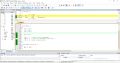
Mine is keil 5.40. I started to debug code but I don't understand how to check where is problem

1599328141423.png
 

BobaMosfet

Joined Jul 1, 2009
2,211
I have added one more tool "simulator" to my list. Yes i will work on it.
What compiler do you use?

I did not use the flowchart to solve this problem because I did not feel it was necessary to solve this problem. I make a flowchart only when I find it very difficult to solve the problem
Your excuse is the lazy man's answer. If you have to ask for help, the problem is too difficult for you alone. Obviously. Thus, I fear, developing is not for you, IMHO.
 
Last edited:

djsfantasi

Joined Apr 11, 2010
9,237
external interrupt : Toggle LED at each press of push button

I wrote program to toggle LED at each press of push button but It's not working as it suppose to do. When I press push button LED doesn't toggle

C:
#include<reg51.h>

sbit Switch = P3^7;     //Switch connected to Port P3.7
sbit LED   = P2^0;    //LED connected at output Pin P2.0 */

void main ()
{
     P0 = 0x00;
     P1 = 0x00;
     P3 = 0x80;
    P0 = 0x00;
  
     EA = 1; // Enable global interrupt */
     EX0 = 1; // External interrupt enable bit //
     IT0 = 1; //Edge triggred mode //
}

void ISR() interrupt 0
{
    LED =~ LED;
}
When you press a push button once, how many times do the contacts close?
 

JohnInTX

Joined Jun 26, 2012
4,787
Help->Contents->Search ‘Debug‘ is your friend.

Right click line 17. Toggle Breakpoint
On toolbar click RST to reset then GO. Code will stop at breakpoint.
On toolbar click ‘step over’ to step the code one by one.
Does it seem right or have you forgotten something?
 
Last edited:

JohnInTX

Joined Jun 26, 2012
4,787
Thinking further: I would load the code in #65 which works and that you understand (hopefully) and use that as a tool to learn the debugger.

Set breakpoints at various points in the code.
Step the code.
Open a watch window and watch the 'Counter' variable.
Open the window that shows the 8051 registers and watch them as you step the code.
Run the 'Animate' function.

To use the execution timer:
Set a breakpoint at the line that toggles the LED.
Run the code until it stops.
Reset the timer : Debug -> Reset Timer on mine, yours may be different.
Run the code again until it stops at the same point.
Observe the elapsed time in the time window (No, I don't know where it is on your version, look for it)

Use this working code to learn how the simulator / debugger works and get comfortable with it. Then load your other code and debug it with confidence. You will find the debugger/simulator a powerful tool not only to find bugs but as a good teaching tool, too.
 

djsfantasi

Joined Apr 11, 2010
9,237
When you press a push button once, how many times do the contacts close?
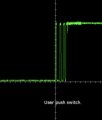
The answer to my question is when you press a push button, the contacts close many times. If they close an even number of times, the LED will remain off.
D3BA43D2-A3BD-469F-9D14-066181D3038E.jpeg

This is a picture of what happens when a push button is pressed. You can see many transitions. This is called switch bounce. I’ve had many push buttons that change a certain number of times consistently.

The solution to this behavior is that you must “debounce” the switch input. Many published bits of code will debounce your push button, so that one press only returns one change.

The simple case for example, is the switch bounces twice when you press it. The first bounce turns the LED on; the second bounce turns it off. You can extend this to any even number of switch bounces. So your program is doing what you told it to, but it looks like nothing is happening.
 
Last edited:

Thread Starter

Djsarakar

Joined Jul 26, 2020
489
@JohnInTX I would try something simple to learn debug process

Turn on LED when sensor is high otherwise LED will be OFF

Code:
#include<reg51.h>

sbit LED = P2^0;
sbit Sensor = P3^7;

#define   High     1
#define   LED_ON   1
#define   LED_OFF  0
#define   True     1

void main (void)
{
    P2 = 0x00;
    P3 = 0x80;
 
    while (True)
    {
 
      if (Sensor == High)
       {
            LED = LED_ON;

       }
      else
       {
           LED = LED_OFF;
       }
     }
}
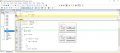
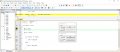
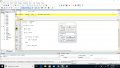
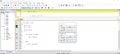
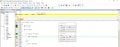
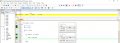
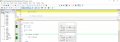
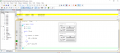
In debugging process, I am checking each port pins. Please take a look at below screen shots

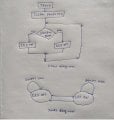
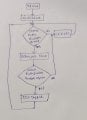
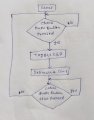
@BobaMosfet Flow chart and state diagram

IMG_20200906_132947.jpg
 

Attachments

Last edited:

trebla

Joined Jun 29, 2019
599
You have placed breakpoint outside the while(True) loop. Once your program enters this loop, it will be never see this breakpoint again. If you place breakpoint inside tis loop you will be able start program running and it will stop at this breakpoint again. It is very useful for testing timers and delays because you can read register values after each pass of this loop without clicking mouse button several thousand times (step into).
 

Thread Starter

Djsarakar

Joined Jul 26, 2020
489
You have placed breakpoint outside the while(True) loop. Once your program enters this loop, it will be never see this breakpoint again. If you place breakpoint inside tis loop you will be able start program running and it will stop at this breakpoint again. It is very useful for testing timers and delays because you can read register values after each pass of this loop without clicking mouse button several thousand times (step into).
trebla, breakpoints are between line 19 and line 25. When I click on step over button I don't observe any change in port pins


1599384458280.png
 

trebla

Joined Jun 29, 2019
599
Are you sure the sensor will trigger? To simplify things, you can test your software with push-button instead. And do'nt forget use pulldown or pullup resistor with button switch.

This type of flame sensor needs treshold value to be set with onboard pot. If your program works with pushbutton then you can start trimming treshold value for this sensor.
 

Thread Starter

Djsarakar

Joined Jul 26, 2020
489
If your program works with pushbutton then you can start trimming treshold value for this sensor.
Ok i'm not writing a program directly as per others member suggestions. i am first creating a flow chart

initially LED is OFF, Toggle LED at each press of push button

IMG_20200906_144606.jpg
 
Last edited:

trebla

Joined Jun 29, 2019
599
In your current program #73 you check only if the Sensor output is currently high or low and then switches LEDs on or off, no matter switch debounces or not. In your flowchart #79 you check button single presses for toggling LED and there is switch debounce routine mandatory. But notice that- LED toggling means if LED is on then is set LOW and if it is off then it is set on. In your flowchart one push switches LED of and two pushes switch LED on.
 

JohnInTX

Joined Jun 26, 2012
4,787
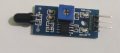
I have flame sensor, Turn on LED when sensor is detected smoke otherwise LED will be OFF
Take a look at sensor
Keep in mind that Keil Debug is a simulator - your code is not running on the target chip. A physical sensor or button can't be sensed.
You can simulate what happens when an input bit changes by setting or clearing simulated bits in one of the Parallel Port windows that you have open.

Set a breakpoint at LED = LED_OFF.
Run the code then set P3.7 to 0 by clicking the checkmark in the Pins row in the Parallel Port 3 window
The running code should stop there.
Step through that line and the LED bit on port 2 should go to 0.
 

Thread Starter

Djsarakar

Joined Jul 26, 2020
489
Keep in mind that Keil Debug is a simulator - your code is not running on the target chip. A physical sensor or button can't be sensed.
You can simulate what happens when an input bit changes by setting or clearing simulated bits in one of the Parallel Port windows that you have open.
Thank you @JohnInTX so this simulator is best to check logic test

@trebla I understand debouncing to check the push button I drew flow chart, I don't understand how LED would be toggle at each press of button

IMG-20200906-WA0025.jpg
 

trebla

Joined Jun 29, 2019
599
One possible button debounce sequence:
PointA:Check if button pressed, if no, check again, if yes toggle LED and start debounce delay 10-20ms. Check if button still pressed, if yes, check again, if no, go to Point A.
Try to draw a flowchart for your program using this debounce sequence.
 

Thread Starter

Djsarakar

Joined Jul 26, 2020
489
One possible button debounce sequence:
PointA:Check if button pressed, if no, check again, if yes toggle LED and start debounce delay 10-20ms. Check if button still pressed, if yes, check again, if no, go to Point A.
Try to draw a flowchart for your program using this debounce sequence.
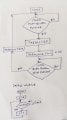
I have created below flow chart

IMG_20200907_152716.jpg
 

trebla

Joined Jun 29, 2019
599
Very good!
As you know, the button contacts bounces by closing its and same thing occurs if you release this button. Now close you eyes and imagine what happens with our LED if we hold button longer time than 20 ms debounce delay?

In the last button release checking we may get release bouncing and LED toggles again! This means, we must add one more delay at button release section and now the new and hopefully better debounce routine looks like this:
PointA:Check if button pressed, if no, check again, if yes toggle LED and start debounce delay 10-20ms. Check if button still pressed, if yes, check again, if no, start debounce delay 10-20 ms and go to Point A.

Embedded engineer must have hardware thinking and software thinking in same time. You must learn imagine how your hardware acts and what software must do in same time. If it helps close your eyes and feel real time passing and your system possible states changing.

For this delay routine you can also draw a flow diagram and try write simple bocking-type code with while() loops and delay() functions.
 

Thread Starter

Djsarakar

Joined Jul 26, 2020
489
PointA:Check if button pressed, if no, check again, if yes toggle LED and start debounce delay 10-20ms. Check if button still pressed, if yes, check again, if no, start debounce delay 10-20 ms and go to Point A.

For this delay routine you can also draw a flow diagram and try write simple bocking-type code with while() loops and delay() functions.
Thank you @trebla , I am writing code

IMG_20200907_165157.jpg
New version of flow chart.
 
Last edited:
Top