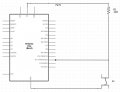
need basic shematic for arduino uno led chaser with button , when button is clicked then change affect of led.
if anybody has it please share as am beginer.
need basic shematic for arduino uno led chaser with button , when button is clicked then check affect of led.
if anybody has it please share as am beginer.
i want to do exactly as shown in the video , when the button is pressed once then the effect of the lights should change, if u check his description he has the code for arduino their or i can paste it here, am just stuck on how to wire the thing up he left no shematics buddy. http://ardx.org/src/circ/CIRC02-code.txt
Code:
/*     ---------------------------------------------------------
*     |  Modified Arduino Experimentation Kit Example Code    |
*     |  CIRC-02 .: 8 LED Fun :. (Multiple LEDs) with button  |
*     ---------------------------------------------------------
*
*  A few Simple LED animations
*
*
*  Modified by Mitesh Upadhyaya on 06/08/11
*/
//LED Pin Variables
int ledPins[] = {2,3,4,5,6,7,8,9}; //An array to hold the pin each LED is connected to
                                   //i.e. LED #0 is connected to pin 2, LED #1, 3 and so on
                                   //to address an array use ledPins[0] this would equal 2
                                   //and ledPins[7] would equal 9

int buttonPin = 11;  // button pin variable, we will be using pin 11

int val = 0; // variable to read button pin value

int sequence = 1; // variable to hold current sequence
/*
* setup() - this function runs once when you turn your Arduino on
* We the three control pins to outputs
*/
void setup()
{

  //Set each pin connected to an LED to output mode (pulling high (on) or low (off)
  for(int i = 0; i < 8; i++){         //this is a loop and will repeat eight times
      pinMode(ledPins[i],OUTPUT); //we use this to set each LED pin to output
  }                                   //the code this replaces is below

  pinMode(buttonPin, INPUT); // set button pin to be an input
  /* (commented code will not run)
   * these are the lines replaced by the for loop above they do exactly the
   * same thing the one above just uses less typing
  pinMode(ledPins[0],OUTPUT);
  pinMode(ledPins[1],OUTPUT);
  pinMode(ledPins[2],OUTPUT);
  pinMode(ledPins[3],OUTPUT);
  pinMode(ledPins[4],OUTPUT);
  pinMode(ledPins[5],OUTPUT);
  pinMode(ledPins[6],OUTPUT);
  pinMode(ledPins[7],OUTPUT);
  (end of commented code)*/
}
/*
* loop() - this function will start after setup finishes and then repeat
* we call a function called oneAfterAnother(). if you would like a different behaviour
* uncomment (delete the two slashes) one of the other lines
*/
void loop()                     // run over and over again
{
  // oneAfterAnotherNoLoop();   //this will turn on each LED one by one then turn each off
  //oneAfterAnotherLoop();   //does the same as oneAfterAnotherNoLoop but with
                             //much less typing
  //oneOnAtATime();          //this will turn one LED on then turn the next one
                             //on turning the
                             //former off (one LED will look like it is scrolling
                             //along the line
  //inAndOut();              //lights the two middle LEDs then moves them out then back
                             //in again

       // check if button pressed

        val = digitalRead(buttonPin);
        if(val == LOW)
        {
            if(sequence == 3) // if sequence is at 3 already, make it 1 again
            {
               sequence = 1;
            } else
                {
                  sequence++; // otherwise go to the next sequence
                }
        }

         switch(sequence)
                 {
                     case 1:
                     oneAfterAnotherNoLoop();
                     break;
                     case 2:
                     oneOnAtATime();
                     break;
                     case 3:
                     inAndOut();
                     break;
                 }


}
/*
* oneAfterAnotherNoLoop() - Will light one LED then delay for delayTime then light
* the next LED until all LEDs are on it will then turn them off one after another
*
* this does it without using a loop which makes for a lot of typing.
* oneOnAtATimeLoop() does exactly the same thing with less typing
*/
void oneAfterAnotherNoLoop(){
  int delayTime = 100; //the time (in milliseconds) to pause between LEDs
                       //make smaller for quicker switching and larger for slower
  digitalWrite(ledPins[0], HIGH);  //Turns on LED #0 (connected to pin 2 )
  delay(delayTime);               //waits delayTime milliseconds
  digitalWrite(ledPins[1], HIGH);  //Turns on LED #1 (connected to pin 3 )
  delay(delayTime);               //waits delayTime milliseconds
  digitalWrite(ledPins[2], HIGH);  //Turns on LED #2 (connected to pin 4 )
  delay(delayTime);                //waits delayTime milliseconds
  digitalWrite(ledPins[3], HIGH);  //Turns on LED #3 (connected to pin 5 )
  delay(delayTime);                //waits delayTime milliseconds
  digitalWrite(ledPins[4], HIGH);  //Turns on LED #4 (connected to pin 6 )
  delay(delayTime);            //waits delayTime milliseconds
  digitalWrite(ledPins[5], HIGH);  //Turns on LED #5 (connected to pin 7 )
  delay(delayTime);               //waits delayTime milliseconds
  digitalWrite(ledPins[6], HIGH);  //Turns on LED #6 (connected to pin 8 )
  delay(delayTime);               //waits delayTime milliseconds
  digitalWrite(ledPins[7], HIGH);  //Turns on LED #7 (connected to pin 9 )
  delay(delayTime);               //waits delayTime milliseconds
//Turns Each LED Off
  digitalWrite(ledPins[7], LOW);  //Turns on LED #0 (connected to pin 2 )
  delay(delayTime);                //waits delayTime milliseconds
  digitalWrite(ledPins[6], LOW);  //Turns on LED #1 (connected to pin 3 )
  delay(delayTime);               //waits delayTime milliseconds
  digitalWrite(ledPins[5], LOW);  //Turns on LED #2 (connected to pin 4 )
  delay(delayTime);               //waits delayTime milliseconds
  digitalWrite(ledPins[4], LOW);  //Turns on LED #3 (connected to pin 5 )
  delay(delayTime);                //waits delayTime milliseconds
  digitalWrite(ledPins[3], LOW);  //Turns on LED #4 (connected to pin 6 )
  delay(delayTime);               //waits delayTime milliseconds
  digitalWrite(ledPins[2], LOW);  //Turns on LED #5 (connected to pin 7 )
  delay(delayTime);              //waits delayTime milliseconds
  digitalWrite(ledPins[1], LOW);  //Turns on LED #6 (connected to pin 8 )
  delay(delayTime);                //waits delayTime milliseconds
  digitalWrite(ledPins[0], LOW);  //Turns on LED #7 (connected to pin 9 )
  delay(delayTime);                //waits delayTime milliseconds
}
/*
* oneAfterAnotherLoop() - Will light one LED then delay for delayTime then light
* the next LED until all LEDs are on it will then turn them off one after another
*
* this does it using a loop which makes for a lot less typing.
* than oneOnAtATimeNoLoop() does exactly the same thing with less typing
*/
void oneAfterAnotherLoop(){
  int delayTime = 100; //the time (in milliseconds) to pause between LEDs
                       //make smaller for quicker switching and larger for slower
//Turn Each LED on one after another
  for(int i = 0; i <= 7; i++){
    digitalWrite(ledPins[i], HIGH);  //Turns on LED #i each time this runs i
    delay(delayTime);                //gets one added to it so this will repeat
  }                                  //8 times the first time i will = 0 the final
                                     //time i will equal 7;
//Turn Each LED off one after another
  for(int i = 7; i >= 0; i--){  //same as above but rather than starting at 0 and counting up
                                //we start at seven and count down
    digitalWrite(ledPins[i], LOW);  //Turns off LED #i each time this runs i
    delay(delayTime);               //gets one subtracted from it so this will repeat
  }                                  //8 times the first time i will = 7 the final
                                     //time it will equal 0


}
/*
* oneOnAtATime() - Will light one LED then the next turning off all the others
*/
void oneOnAtATime(){
  int delayTime = 100; //the time (in milliseconds) to pause between LEDs
                       //make smaller for quicker switching and larger for slower

  for(int i = 0; i <= 7; i++){
    int offLED = i - 1;  //Calculate which LED was turned on last time through
    if(i == 0) {         //for i = 1 to 7 this is i minus 1 (i.e. if i = 2 we will
      offLED = 7;        //turn on LED 2 and off LED 1)
    }                    //however if i = 0 we don't want to turn of led -1 (doesn't exist)
                         //instead we turn off LED 7, (looping around)
    digitalWrite(ledPins[i], HIGH);     //turn on LED #i
    digitalWrite(ledPins[offLED], LOW); //turn off the LED we turned on last time
    delay(delayTime);
  }
}
/*
* inAndOut() - This will turn on the two middle LEDs then the next two out
* making an in and out look
*/
void inAndOut(){
  int delayTime = 100; //the time (in milliseconds) to pause between LEDs
                       //make smaller for quicker switching and larger for slower

  //runs the LEDs out from the middle
  for(int i = 0; i <= 3; i++){
    int offLED = i - 1;  //Calculate which LED was turned on last time through
    if(i == 0) {         //for i = 1 to 7 this is i minus 1 (i.e. if i = 2 we will
      offLED = 3;        //turn on LED 2 and off LED 1)
    }                    //however if i = 0 we don't want to turn of led -1 (doesn't exist)
                         //instead we turn off LED 7, (looping around)
    int onLED1 = 3 - i;       //this is the first LED to go on ie. LED #3 when i = 0 and LED
                             //#0 when i = 3
    int onLED2 = 4 + i;       //this is the first LED to go on ie. LED #4 when i = 0 and LED
                             //#7 when i = 3
    int offLED1 = 3 - offLED; //turns off the LED we turned on last time
    int offLED2 = 4 + offLED; //turns off the LED we turned on last time

    digitalWrite(ledPins[onLED1], HIGH);
    digitalWrite(ledPins[onLED2], HIGH);
    digitalWrite(ledPins[offLED1], LOW);
    digitalWrite(ledPins[offLED2], LOW);
    delay(delayTime);
  }
  //runs the LEDs into the middle
  for(int i = 3; i >= 0; i--){
    int offLED = i + 1;  //Calculate which LED was turned on last time through
    if(i == 3) {         //for i = 1 to 7 this is i minus 1 (i.e. if i = 2 we will
      offLED = 0;        //turn on LED 2 and off LED 1)
    }                    //however if i = 0 we don't want to turn of led -1 (doesn't exist)
                         //instead we turn off LED 7, (looping around)
    int onLED1 = 3 - i;       //this is the first LED to go on ie. LED #3 when i = 0 and LED
                             //#0 when i = 3
    int onLED2 = 4 + i;       //this is the first LED to go on ie. LED #4 when i = 0 and LED
                             //#7 when i = 3
    int offLED1 = 3 - offLED; //turns off the LED we turned on last time
    int offLED2 = 4 + offLED; //turns off the LED we turned on last time

    digitalWrite(ledPins[onLED1], HIGH);
    digitalWrite(ledPins[onLED2], HIGH);
    digitalWrite(ledPins[offLED1], LOW);
    digitalWrite(ledPins[offLED2], LOW);
    delay(delayTime);
  }
}
The video begins with a schematic. You previously mentioned you were experienced with programming. Reading the code I see:
Code:
int ledPins[] = {2,3,4,5,6,7,8,9}; //An array to hold the pin each LED is connected to
                                   //i.e. LED #0 is connected to pin 2, LED #1, 3 and so on
                                   //to address an array use ledPins[0] this would equal 2
                                   //and ledPins[7] would equal 9
That tells us pins 2, 3, 4, 5, 6, 7, 8, and 9 of the Arduino are the Digital pins used. The code later sets the pins as Outputs. The code further goes on and covers pin 11:
Code:
int buttonPin = 11;  // button pin variable, we will be using pin 11
int val = 0; // variable to read button pin value
Each pin connects to a LED Anode and the LED Cathode runs through a 500 Ohm resistor to a Common. Shown in the schematic in the beginning of the video. The Arduino Digital Outputs go High to illuminate the LEDs which is also apparent in the code. As to the button?
Code:
 // check if button pressed
        val = digitalRead(buttonPin);
        if(val == LOW)
Tells me that the button pin which is set as a digital input goes low for something to happen so the button is just a N/O push button from pin to common. There is not much to it. He shows a schematic at the start and less a simple button that is all there is. The code runs with exactly what he mentions. The LED Anodes to the pins, the LED Cathodes through 500 Ohm resistors to common. While he shows 500 Ohms that is not a common everyday resistor value, You can likely use 470 Ohms or 510 Ohms. The actual resistance will be based on the LED forward voltage and current which should be in the LED data sheet.
If you want interesting effects and to get creative look for code and schematics using RGB (Red Green Blue) LEDs. Learn the code for fading in and out and how RGB can be used to make a range of color. You can use 3 pins of your Arduino and get some really interesting and nice effects. Just a matter of learning and understanding the code and how three colors can be applied for cool effects. Blinking on and off red or any common color gets boring.
 // check if button pressed
        val = digitalRead(buttonPin);
        if(val == LOW)
        {
            if(sequence == 3) // if sequence is at 3 already, make it 1 again
            {
               sequence = 1;
            } else
                {
                  sequence++; // otherwise go to the next sequence
                }
        }
It seems to me that when button is pressed, then pin 11 goes low (to ground). That means button is normally high. So. The hardware would look like this:
Good point. I looked at his code and he doesn't spell out:
Code:
pinMode(11,INPUT_PULLUP);
I am pretty sure the Arduino can use an internal pull up but his code doesn't mention it. If it does I can't find it. Good find and my bad for not including a pull up resistor.
OK, before I call it a night. The resistor and LED are in series and it really doesn't matter the order. You can go Pin LED Resistor Common or Pin Resistor LED Common. What does matter is the LED polarity. Normally LEDs like those used in the video have a small flat on one side. That Flat should be the Cathode. You want your Cathode side to Common. Here are some examples. So the order from pin to common doesn't matter but the LEDs do have a polarity. When drawn they resemble:
Anode side -------------->|----------- Cathode side.
The resistor values depend on the LEDs you have. The Arduino should output about 5.0 Volts or close to it. A typical generic Red LED is generally a Forward Voltage of about 1.8 to 2.2 volts so lets say in this case Vf = 2.0 Volts. They typically have a Forward Current Maximum of about 20 mA (0.020 Amp). Let's say you want your LED to operate at 15 mA. So what we do is subtract V forward from V supply or 5 - 2 = 3 and then we get 3 / .015 = 200 Ohms which is not standard so we could bump it up and say 220 Ohms which is a common off the shelf resistor. A Google of "led resistor calculator" will get a dozen hits but that is how it is calculated. Problem is I don't know the specifications for your LEDs I just used basic generic data.
i hope i do it correctly and then add that code and run it and se if it runs it the same way shown on video.
after that i have a question ,which is adding more ( modes | sequence ) to single button click.
now i am wanting to add more modes so kindly look at this line
Code:
 if(sequence == 3) // if sequence is at 3 already, make it 1 again
  {
  sequence = 1;
  } else
  {
  sequence++; // otherwise go to the next sequence
  }
  }

  switch(sequence)
  {
  case 1:
  oneAfterAnotherNoLoop();
  break;
  case 2:
  oneOnAtATime();
  break;
  case 3:
  inAndOut();
  break;
  }


}
do i just add more case's to add more and off course each of them select case string below to a code below, am just asking do i just add more cases and also alter if(sequence == 3 to how many i currently have.
The Arduino programming is pretty much done in C. What is used is a Case Statement and yes, you seem to have the idea. I am not a programmer type but have done a little programming, mostly basic Visual Basic and even then not much above VB 6.0. Anyway the Case is a switch, for example:
Code:
switch(expression) {

   case constant-expression  :
      statement(s);
      break; /* optional */

   case constant-expression  :
      statement(s);
      break; /* optional */

   /* you can have any number of case statements */
   default : /* Optional */
   statement(s);
}
So since we have three case statements you would bump the 3 up to a 4 or 5 or whatever you want. Just remember to make all the required changes.
1: i was wondering if i can get these led sequence effect code from other source and just put it in the code rather then building it all from scratch , i wish to have more then 20 affects xd, so am sure u know what i mean when i have to build the code test them 1 by 1 time consuming.
i also do vb6 programming also , also in android developement , php , so i am quick learner, i try much as i can to learn if i cant i ask
Yes, you can build on code. When you look at a chunk of well written code you will see remarks included in the code. For example you will see // and some defining text. The // tells the system to ignore the remarks which follow or the comments. So using the remarks and comments well written code is telling you what that line or several lines are actually doing. Use those explanations to learn from, anyway yes you can build on or add to existing code.
Next, keep something in mind. Your Arduino like any uC (micro-controller) is not an infinite source of current for driving an endless string or mountain of LEDs. Pins have their limits on how much current they can source or sink. I suggest you read this link. If you overload a pin there is a possibility you toast your Arduino. When we want more current to for example drive several LEDs on a single pin we add a transistor to drive the LEDs. This way the transistor handles the higher current and not the output pin.
i have 8 led and i will stick to that , that is enough , i just want to add more sequence to it i guess this is possible using that select case statement right ?
am just looking for more codes like this so i can add them to the current source code,rather then having to write everything again for example
is it possible to use car 12v battery to power the main prototype board up ?.
currently am using usb to power the arduino uno board am guessing the board is taking in 5v or more for usb power if this is correct then maybe i have to convert car 12v to 5v ?
and i was wanting to add led strip for car for each output so how much power can i use for each output of led pins
is it possible to use car 12v battery to power the main prototype board up ?.
currently am using usb to power the arduino uno board am guessing the board is taking in 5v or more for usb power if this is correct then maybe i have to convert car 12v to 5v ?
and i was wanting to add led strip for car for each output so how much power can i use for each output of led pins

 Facebook
 Google
 GitHub
 Linkedin