Arduino UNO AF/FM Radio Si4844-B20 I2C Issues

Status
Not open for further replies.

Thread Starter

talexander

Joined Feb 5, 2019
33
Just curious? Why are you using an interrupt?

Have you read the Arduino reference pages on interrupts?

And it’s not clear to me what the original key press code was and what you replaced it with.

Did you find the buttonPress sample code and understand what it does? Walk before you can run. If you don’t understand the basic concepts (including debouncing), then no one here can explain it to you.

  • Teach yourself the basics by reading the sample code and running it on your Arduino. Otherwise, you won’t be able to understand what we’re telling you
  • Take small steps. Get one button working Toggle an LED with a button
  • Add buttons, one by one until they work with a test program
  • Learn what switch bounce us and write a couple of sketches, One without debouncing that counts the number of times a switch input toggled from high to low you might be surprised! The second switch uses the BOUNCE2 library. Count the number of times s switch input changed state with the bounce functions
  • By the time you’ve done this, you’ll know what’s wrong with this program.
BTW, your last comment implied that we haven’t seen your latest code. Isn’t it then reasonable to assume we have no chance to fix something we’ve never seen?
I never created the interrupt, it was a part of the original code. I know it was pretty amateur to mix up the input pins but I am very familiar with buttons. The other radio runs a series of relays, cooling fans, etc. and that was no problem to program. I'm just struggling to understand parts of the code since the chip has a specific sequence to communicate with the Arduino. I didn't post the most recent code because of the length but if it helps here is everything that I have so far. Also just a side note that I'm using a flip dot display instead of an LCD.

Code:
#include <Wire.h>  // for the Arduino wire library (I2C)
// chip I2C address is hard coded
#define Si_ADDRESS 0x11

// Si Commands in their nomenclature
#define ATDD_POWER_DOWN 0x11
#define ATDD_POWER_UP  0xE1
#define ATDD_XOWAIT  0x40
#define SET_PROPERTY  0x12
#define RX_VOLUME  0x40
#define ATDD_GET_STATUS 0xE0

// Globals
//input pins
const int FM_Input = 3;
const int AM_Input = 4;
const int SW_Input = 5;
int bandsetting = 0;
int FM_Mode;
int AM_Mode;
int SW_Mode;

// Arduino Pins D2=IRQ D12=reset
const byte INTpin = 2;
const byte RESETpin = 12;

// for the ISR
volatile byte IRQflag;

// Default bands within FM/AM/SW - the band we start with when switching modes
byte d_FM_band = 8;
byte d_AM_band = 22;
byte d_SW_band = 31;
byte status_rsp[4];  // holds response bytes following commands
byte current_band = 0;  // 0=FM 1-AM 2=SW  if there has been no power down we will start with 0
byte current_bandix;  // current band index
byte current_vol = 50;  // default boot up value is 63
byte current_BT = 4;  // default boot up value is 4 or 3 FM/AM
byte power_mode = 1;  // denotes if we are in power down mode (1=power on 0=power off (powered down))
byte mute_mode = 0;  // denotes mute mode (1=on 0=off)
char buf2[3];  // for itoa conversion up to two characters
int d1, d2, d3, d4;  // for an easy print

// Band Range strings to make display easy and fast
char * BandRange[] = {"  87-108  ", "  87-108  ", "  87-108  ", "  87-108  ", "  86.5-109 ", "  86.5-109 ", "  86.5-109 ", "  86.5-109 ",
  "87.3-108.25", "87.3-108.25", "87.3-108.25", "87.3-108.25", "  76-90  ", "  76-90  ", "  76-90  ", "  76-90  ", "  64-87  ", "  64-87  ",
  "  64-87  ", "  64-87  ", "  520-1710 ", "  522-1620 ", "  504-1665 ", "  520-1730 ", "  510-1750 ", "  5.6-6.4  ", "  5.95-6.2 ", "  6.8-7.6  ",
  "  7.1-7.6  ", "  9.2-10  ", "  9.2-9.9  ", "11.45-12.25", " 11.6-12.2 ", " 13.4-14.2 ", "13.57-13.87", "  15-15.9  ", " 15.1-15.8 ", "  17.1-18  ",
  " 17.48-17.9", "  21.2-22  ", "21.45-21.85"
  };

// flip dots control pin
int txden = 8;
byte data_prefix[] = {0x80, 0x83, 0xFF};
byte data_suffix[] = {0x8F};

// numbers font
byte zero[]  = {B0011100, B0100010, B0100010, B0011100};
byte one[] = {B0111110, B0000000, B0000000, B0000000};
byte two[]  = {B0010010, B0101010, B0100110, B0010010};
byte three[] = {B0010100, B0101010, B0101010, B0100010};
byte four[]  = {B0000100, B0111110, B0010100, B0001100};
byte five[]  = {B0000100, B0101010, B0101010, B0111010};
byte six[]  = {B0000100, B0101010, B0101010, B0011100};
byte seven[] = {B0110000, B0101000, B0100110, B0100000};
byte eight[] = {B0010100, B0101010, B0101010, B0010100};
byte nine[]  = {B0011100, B0101010, B0101010, B0010000};

// first digit
byte side_one[]  = {B0000000, B0111110, B0000000};
byte side_zero[] = {B0000000, B0000000, B0000000};
// blank space
byte space[] = {B0000000};
byte black[] = {B1111111};
byte dot[] = {B0000010};

// 28 byte data
byte built_by[] = {B0000000,
  B0111000, B001110, B0111000, //Y
  B0000000,
  B0110110, B0101010, B0111110, //B
  B0000000,
  B0000000,
  B0100000, B0111110, B0100000, //T
  B0000000,
  B0000010, B000010, B0111110, //L
  B0000000,
  B0111110, //I
  B0000000,
  B0111110, B0000010, B0111110, //U
  B0000000,
  B0110110, B0101010, B0111110, //B
  B0000000
  };
byte Trey_A[] = {B0000000,
  B0000000,
  B0000000,
  B0000000,
  B0000000,
  B0000010,
  B0000000,
  B0011110, B0101000, B0011110, // A
  B000000,
  B0000000,
  B0111000, B001110, B0111000, //Y
  B0000000,
  B0100010, B0101010, B0111110, //E
  B0000000,
  B0110110, B0101000, B0111110, //R
  B0000000,
  B0100000, B0111110, B0100000, //T
  B0000000
  };
byte AM[] = {B0000000,
  B0000000,
  B0000000,
  B0000000,
  B0000010,
  B0000000,
  B0000000,
  B0000000,
  B0000010,
  B0000000,
  B0111110, B0010000, B0111110, // M
  B000000,
  B0000000,
  B0011110, B0101000, B0011110, // A
  B0000000,
  B0000000,
  B0000000,
  B0000010,
  B0000000,
  B0000000,
  B0000000,
  B0000010,
  B0000000,
  B0000000
  };
byte FM[] = {B0000000,
  B0000000,
  B0000000,
  B0000000,
  B0000010,
  B0000000,
  B0000000,
  B0000000,
  B0000010,
  B0000000,
  B0111110, B0010000, B0111110, // M
  B000000,
  B0000000,
  B0100000, B0101000, B0111110, // F
  B0000000,
  B0000000,
  B0000000,
  B0000010,
  B0000000,
  B0000000,
  B0000000,
  B0000010,
  B0000000,
  B0000000
  };
byte SW[] = {B0000000,
  B0000000,
  B0000000,
  B0000000,
  B0000010,
  B0000000,
  B0000000,
  B0000000,
  B0000010,
  B0000000,
  B0111110, B0000100, B0111110, // W
  B000000,
  B0000000,
  B0101110, B0101010, B0111010, // S
  B0000000,
  B0000000,
  B0000000,
  B0000010,
  B0000000,
  B0000000,
  B0000000,
  B0000010,
  B0000000,
  B0000000
  };

void setup() {
  Serial.begin(57600);
  pinMode (INTpin, INPUT);
  pinMode(RESETpin, OUTPUT);
  digitalWrite(RESETpin, HIGH);
  attachInterrupt(0, SiISR, RISING);
  SiReset();
  current_bandix = d_FM_band;
  SiSetBand();
  get_status();
  current_band = (status_rsp[1] >> 6);
  current_bandix = (status_rsp[1] & B00111111);

  //display_frequency();
  go_current();  // will set up for default VOL

  //input selector
  pinMode(FM_Input, INPUT);
  pinMode(AM_Input, INPUT);
  pinMode(SW_Input, INPUT);

  //flip dots
  pinMode(txden, OUTPUT);
  digitalWrite(txden, HIGH); // master

  //Display author name
  Serial.write(data_prefix, 3);
  Serial.write(built_by, 28);
  Serial.write(data_suffix, 1);
  delay(4000);
  Serial.write(data_prefix, 3);
  Serial.write(Trey_A, 28);
  Serial.write(data_suffix, 1);
  delay(40000);
}

void loop() {
  // Check for tuning changes and keypresses
  if (IRQflag)
  {
  Wire.beginTransmission(Si_ADDRESS);
  Wire.write(ATDD_GET_STATUS);
  Wire.endTransmission();
  Wire.requestFrom(Si_ADDRESS, 0x04);
  status_rsp[0] = Wire.read();
  status_rsp[1] = Wire.read();
  status_rsp[2] = Wire.read();
  status_rsp[3] = Wire.read();
  display_frequency();
  IRQflag = 0;
  }

  FM_Mode = digitalRead(FM_Input);
  AM_Mode = digitalRead(AM_Input);
  SW_Mode = digitalRead(SW_Input);
  
if (FM_Mode = HIGH) {
  bandsetting = 0;
  }
  else if (AM_Mode = HIGH) {
  bandsetting = 1;
  }
  else if (SW_Mode = HIGH) {
  bandsetting = 2;
  }
 
 if (bandsetting != current_band) {
  switch (bandsetting) {
  case 0:
  Go_AM();
  break;
  case 1:
  Go_FM();
  break;
  case 2:
  Go_SW();
  break;
  default:
  break;
  }
  current_band = bandsetting;
  }

  // Get and process a keypress when present
  //  if(key=keypad.getKey())
  //  {
  //  switch(key)
  //  {
  //  case '1':
  //  Go_AM();
  //  break;
  //  case '2':
  //  Go_FM();
  //  break;
  //  case '3':
  //  Go_SW();
  //  break;
  //  case '4':
  //  Vol_up();
  //  break;
  //  case '7':
  //  Vol_down();
  //  break;
  //  case '5':
  //  Band_up();
  //  break;
  //  case '8':
  //  Band_down();
  //  break;
  //  case '6':
  //  BT_up();
  //  break;
  //  case '9':
  //  BT_down();
  //  break;
  //  case '0':
  //  Mute();
  //  break;
  //  default:
  //  break;
  //  }
  //  }
}

void SiReset()
{
  // reset Si4844 and back up
  // switch I2C to 10kHz
  I2C_10kHz();
  IRQflag = 0;
  digitalWrite(RESETpin, LOW);
  delayMicroseconds(200);
  digitalWrite(RESETpin, HIGH);
  delayMicroseconds(200);
  // wait for an IRQ rising edge
  while (!IRQflag);
  // wait for 2.5 ms
  delayMicroseconds(2500);
}

void SiGetStatus()
{
  // send a get status command and wait for 2 ms before testing response byte
  Wire.beginTransmission(Si_ADDRESS);
  Wire.write(ATDD_GET_STATUS);
  Wire.endTransmission();
  delayMicroseconds(2000);
  // test response byte
  Wire.requestFrom(Si_ADDRESS, 0x04);
  for (int x = 0; x < 4; x++)
  {
  status_rsp[x] = Wire.read();
  }
}

void SiSetBand()
{
  // assuming CTS is ok to send, assume current_band is set
  // will do a power up AND a get status setting status_rsp[0-4]
  byte cb;
  cb = current_bandix;
  bitSet(cb, 7);  // bit 7=1 for external crystal
  bitClear(cb, 6);  // bit 6=0 for normal crystal time
  // arg[2]-[7] are not used in this mode
  IRQflag = 0;
  // send it
  Wire.beginTransmission(Si_ADDRESS);
  Wire.write(ATDD_POWER_UP);
  Wire.write(cb);
  Wire.endTransmission();
  // wait for an IRQ for tune wheel frequency ready
  delayMicroseconds(2500);
  while (!IRQflag);
  // wait for 2.5 ms because our IRQ is rising edge
  delayMicroseconds(2500);
  I2C_50kHz();
  // send a get status and wait for 2 ms before testing response byte
  get_status();
}

void Vol_up()
{
  // we operate in the audio default Mixed Mode 2
  // assume that current_vol is accurate
  if (current_vol < 63)
  {
  current_vol++;
  Wire.beginTransmission(Si_ADDRESS);
  Wire.write(SET_PROPERTY);
  Wire.write(0x00);  // ARG1
  Wire.write(RX_VOLUME);  // ARG2 RX_VOLUME 0x40
  Wire.write(0x00);  // ARG3
  Wire.write(0x00);  // ARG4
  Wire.write(current_vol);  // ARG5 is actual volume 0-63
  Wire.endTransmission();
  }
}

void Vol_down()
{
  // we operate in the default Mixed Mode 2
  // assume that current_vol is accurate
  if (current_vol > 0)
  {
  current_vol--;
  Wire.beginTransmission(Si_ADDRESS);
  Wire.write(SET_PROPERTY);
  Wire.write(0x00);  // ARG1
  Wire.write(RX_VOLUME);  // ARG2 RX_VOLUME 0x40
  Wire.write(0x00);  // ARG3
  Wire.write(0x00);  // ARG4
  Wire.write(current_vol);  // ARG5 is actual volume 0-63
  Wire.endTransmission();
  }
}

void Go_FM()
{
  // switch to the FM band with the default band_idx
  SiReset();
  current_bandix = d_FM_band;
  SiSetBand();
  get_status();
  // power up is completed so get the values from the chip
  current_band = (status_rsp[1] >> 6);
  current_bandix = (status_rsp[1] & B00111111);
  display_frequency();
  go_current();
}

void Go_AM()
{
  // switch to the AM band with the default band_idx
  SiReset();
  current_bandix = d_AM_band;
  SiSetBand();
  // in testing the this never loops
  get_status();
  // power up is completed so get the values from the chip
  current_band = (status_rsp[1] >> 6);
  current_bandix = (status_rsp[1] & B00111111);
  display_frequency();
  go_current();
}

void Go_SW()
{
  // switch to the SW band with the default band_idx
  SiReset();
  current_bandix = d_SW_band;
  SiSetBand();
  get_status();
  // power up is completed so get the values from the chip
  current_band = (status_rsp[1] >> 6);
  current_bandix = (status_rsp[1] & B00111111);
  display_frequency();
  go_current();
}

void go_current()
{
  // restore current settings when we switch AM/FM/SW
  // set the Vol to whatever current_vol is
  Wire.beginTransmission(Si_ADDRESS);
  Wire.write(SET_PROPERTY);
  Wire.write(0x00);  // ARG1
  Wire.write(RX_VOLUME);  // ARG2 RX_VOLUME 0x40
  Wire.write(0x00);  // ARG3
  Wire.write(0x00);  // ARG4
  Wire.write(current_vol);  // ARG5 is actual volume 0-63
  Wire.endTransmission();
}

void Band_up()
{
  // increase the band index by 1
  // assume current_band and current_bandix are accurate
  switch (current_band)
  {
  case 0: // FM is 0 19
  if (current_bandix < 19)
  {
  current_bandix++;
  }
  break;
  case 1:  // AM is 20-24
  if (current_bandix < 24)
  {
  current_bandix++;
  }
  break;
  case 2:  //  SW is 25-40
  if (current_bandix < 40)
  {
  current_bandix++;
  }
  break;
  default:
  // error - take no action
  break;
  }
  SiReset();
  SiSetBand();
  get_status();
  // power up is completed so get the values from the chip
  current_band = (status_rsp[1] >> 6);
  current_bandix = (status_rsp[1] & B00111111);
  display_frequency();
  go_current();
}

void Band_down()
{
  // decrease the band index by 1
  // assume current_band and current_bandix are accurate
  switch (current_band)
  {
  case 0: // FM is 0 19
  if (current_bandix > 0)
  {
  current_bandix--;
  }
  break;
  case 1:  // AM is 20-24
  if (current_bandix > 20)
  {
  current_bandix--;
  }
  break;
  case 2:  //  SW is 25-40
  if (current_bandix > 25)
  {
  current_bandix--;
  }
  break;
  default:
  // error - take no action
  break;
  }
  SiReset();
  SiSetBand();
  get_status();
  // power up is completed so get the values from the chip
  current_band = (status_rsp[1] >> 6);
  current_bandix = (status_rsp[1] & B00111111);
  display_frequency();
  go_current();
}

void get_status()
{
  // do SiGetStatus until we have valid frequency info in status_rsp
  // note: in testing we don't loop but it is a good practice
  // also, an error out routine can be added here so it can escape
  // after a certain number of attempts
Waitforgo:
  SiGetStatus();
  if ( ((bitRead(status_rsp[0], 4) == 0) || ( (status_rsp[2] == 0) && (status_rsp[3] == 0))) )
  {
  goto Waitforgo;
  }
}

void display_frequency()
{
  int add;
  // assume that current_band AND status_rsp[2] and status_rsp[3] are accurate
  // calculate the four digits and get their string equivalents for display
  // If CHFREQ[15] is set in the SW band it
  // indicates an add of 5 kHz to the frequency
  // i.e., freq=freq+.005 mHz
  // This is NOT implemented currently but is here if I
  // want to do something with it at a later date
  add = 0;
  if ((current_band == 2) && (bitRead(status_rsp[2], 7) == 1))
  {
  add = 1;
  bitClear(status_rsp[2], 7);
  }
  d1 = status_rsp[2] >> 4;
  d2 = status_rsp[2] % 16;
  d3 = status_rsp[3] >> 4;
  d4 = status_rsp[3] % 16;
  switch (current_band)
  {
  // FM is mhz 012.3
  case 0:
  Serial.write(data_prefix, 3);
  Serial.write(space, 4);
  displayNumber(Serial.write(d4) % 10);
  Serial.write(space, 1);
  Serial.write(dot, 1);
  Serial.write(space, 1);
  displayNumber(Serial.write(d3) % 10);
  Serial.write(space, 1);
  displayNumber(Serial.write(d2) % 10);
  Serial.write(space, 1);
  displayNumber(Serial.write(d1) % 10);
  Serial.write(space, 3);
  Serial.write(data_suffix, 1);
  case 1:
  // AM is 1234 kHz so pad a space
  Serial.write(data_prefix, 3);
  Serial.write(space, 5);
  displayNumber(Serial.write(d4) % 10);
  Serial.write(space, 1);
  displayNumber(Serial.write(d3) % 10);
  Serial.write(space, 1);
  displayNumber(Serial.write(d2) % 10);
  Serial.write(space, 1);
  displayNumber(Serial.write(d1) % 10);
  Serial.write(space, 4);
  Serial.write(data_suffix, 1);
  break;
  case 2:
  // SW is mHz 01.23
  Serial.write(data_prefix, 3);
  Serial.write(space, 4);
  displayNumber(Serial.write(d4) % 10);
  Serial.write(space, 1);
  displayNumber(Serial.write(d3) % 10);
  Serial.write(space, 1);
  Serial.write(dot, 1);
  Serial.write(space, 1);
  displayNumber(Serial.write(d2) % 10);
  Serial.write(space, 1);
  displayNumber(Serial.write(d1) % 10);
  Serial.write(space, 3);
  Serial.write(data_suffix, 1);
  break;
  default:
  // error
  break;
  }
}

void displayNumber(int n) {
  switch (n) {
  case 0:
  Serial.write(zero, 4);
  break;
  case 1:
  Serial.write(one, 4);
  break;
  case 2:
  Serial.write(two, 4);
  break;
  case 3:
  Serial.write(three, 4);
  break;
  case 4:
  Serial.write(four, 4);
  break;
  case 5:
  Serial.write(five, 4);
  break;
  case 6:
  Serial.write(six, 4);
  break;
  case 7:
  Serial.write(seven, 4);
  break;
  case 8:
  Serial.write(eight, 4);
  break;
  case 9:
  Serial.write(nine, 4);
  break;
  default:
  Serial.write(zero, 4);
  }
  return;
}

// NOTE: These speed routines for I2C are for an 8mhz, 3.3v Pro Mini
// They need to be changed for a 16 mHz UNO or other Arduinos
void I2C_10kHz()
{
  // set I2C speed to 10Khz on an 8mHz chip
  TWBR = 98;
  TWSR |= bit(TWPS0);
}
void I2C_50kHz()
{
  // set I2C speed to 50Khz on an 8mHz chip
  TWBR = 18;
  TWSR |= bit(TWPS0);
}
// The interrupt service routine
void SiISR()
{
  IRQflag = 1;
}
 

Thread Starter

talexander

Joined Feb 5, 2019
33
I would say the answers are no and no.

The interrupt is issued by the Si when a tuning change has been performed - when you turn the tuning pot. I use that so that the code can query the chip to find out what the new frequency is and then to display that information. This is all completely spelled out in the article. Do you have to use that? I suppose not, but then imagine tuning your radio and not knowing the frequencies you are tuning to? Of course, if there were a diagram illustrating the functions that the OP wants to implement, that part would come up....have I mentioned the need for some kind of diagram? :)

I don't feel like I am being harsh to ask someone to draw out what they have and what they want to do. If they don't want to do it, they don't have to.
I'm drawing the diagram as we speak I just thought you were asking for a block diagram of the code (which I am having trouble understanding). Sorry for the frustration I thought a few small changes were all that was needed. You are right about the deadline, but that isn't as important as understanding what I'm doing and creating something that works.
 
Last edited:

Thread Starter

talexander

Joined Feb 5, 2019
33
I would say the answers are no and no.

The interrupt is issued by the Si when a tuning change has been performed - when you turn the tuning pot. I use that so that the code can query the chip to find out what the new frequency is and then to display that information. This is all completely spelled out in the article. Do you have to use that? I suppose not, but then imagine tuning your radio and not knowing the frequencies you are tuning to? Of course, if there were a diagram illustrating the functions that the OP wants to implement, that part would come up....have I mentioned the need for some kind of diagram? :)

I don't feel like I am being harsh to ask someone to draw out what they have and what they want to do. If they don't want to do it, they don't have to.
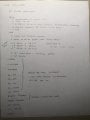
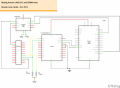
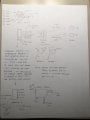
Here is a drawing of my setup and what I am trying to do. I do want to use the interrupt to display only the frequency. To be completely clear I am trying to use a potentiometer to change the volume via an analog port. I am trying to use a rotary switch to select the input. This switch is connected to another Arduino to control a 4 channel relay as described in the drawing. My two options are to use one analog pin to read the rotary switch on both Arduinos or to do what I am currently doing. I am currently using one analog pin on the other Arduino (analogRead) and connecting three digital pins between the two Arduinos. Each pin being high corresponds to a signal for AM, FM, SW. I also attached the code for the other Arduino running the relay if that is useful in understanding the setup. Thank you and if there is anything else that I can provide or if this is not what you want please let me know.

IMG_2904.jpg IMG_2906.jpg

Code:
//Radio Left, Bluetooth Left
int in1 = 9;
//in1 Left, SD Left
int in2 = 10;
//Radio Right, Bluetooth Right
int in3 = 11;
//in3 Right, SD Right
int in4 = 12;

//Input signal out to radio
int out_1 = 6;
int out_2 = 7;
int out_3 = 8;

//Input Selector
int Input = A1 ;
int Power = A2;
int value1 = 0;
int value2 = 0;

void setup() {
  pinMode(out_1, OUTPUT);
  digitalWrite(out_1, LOW);
  pinMode(out_2, OUTPUT);
  digitalWrite(out_2, LOW);
  pinMode(out_3, OUTPUT);
  digitalWrite(out_3, LOW);
  pinMode(in1, OUTPUT);
  digitalWrite(in1, HIGH);
  pinMode(in2, OUTPUT);
  digitalWrite(in2, HIGH);
  pinMode(in3, OUTPUT);
  digitalWrite(in3, HIGH);
  pinMode(in4, OUTPUT);
  digitalWrite(in4, HIGH);
  Serial.begin(9600);
}

void loop() {
  value1 = analogRead(Input);
  //Serial.println(value1);
  value2 = analogRead(Power);
  Serial.println(value2);

  //FM
  if (value1 >= 1000 && value1 <= 1023) {
  digitalWrite(in1, LOW);
  digitalWrite(in2, HIGH);
  digitalWrite(in3, LOW);
  digitalWrite(in4, HIGH);
  digitalWrite(out_1, HIGH);
  digitalWrite(out_2, LOW);
  digitalWrite(out_3, LOW);
  }

  //AM
  else if (value1 >= 950 && value1 <= 999) {
  digitalWrite(in1, LOW);
  digitalWrite(in2, HIGH);
  digitalWrite(in3, LOW);
  digitalWrite(in4, HIGH);
  digitalWrite(out_1, LOW);
  digitalWrite(out_2, HIGH);
  digitalWrite(out_3, LOW);
  }

  //SW
  else if (value1 >= 885 && value1 <= 949) {
  digitalWrite(in1, LOW);
  digitalWrite(in2, HIGH);
  digitalWrite(in3, LOW);
  digitalWrite(in4, HIGH);
  digitalWrite(out_1, LOW);
  digitalWrite(out_2, LOW);
  digitalWrite(out_3, HIGH);
  }

  //BT
  else if (value1 >= 800 && value1 <= 884) {
  digitalWrite(in1, LOW);
  digitalWrite(in2, LOW);
  digitalWrite(in3, LOW);
  digitalWrite(in4, LOW);
  }

  //SD
  else if (value1 >= 700 && value1 <= 799) {
  digitalWrite(in1, HIGH);
  digitalWrite(in2, HIGH);
  digitalWrite(in3, HIGH);
  digitalWrite(in4, HIGH);
  }
}
 
Wow, those attachments are a colossal jumbled mess. Those are rough notes and a start, but not something that will serve you well unless you refine them and try to get at something like a flow chart. While you would probably say that "there is no time for that", had you done it when you started, your coding would go much faster.

Let's boil down the main loop to three parts in the hope that you can get this project moving forward. Basically, you have three major functions in your main loop. Of course all the variables and initialization has to be done first.
  1. Update frequency display on change
  2. Update band switch / output route on switch
  3. Update volume on change
I'm going to try to avoid writing another book length post (but it will likely end up that way) and only deal with number 1 above and only in reference to my original program AND assuming a proper initialization. Hopefully, this will help you understand how that part works and how you need to change it for your set up.

When the pot that is connected (tune1 and tune2 pins) to the Si is turned, the Si's interrupt pin (IRQ) is asserted (goes high) and the Si changes the tuned frequency within the band that has been been set (the 41 possible bands are in https://www.silabs.com/documents/public/application-notes/AN610.pdf).

The Arduino connects to the Si IRQ pin via D2. The code lines in setup configure the connection:
C:
  pinMode (INTpin, INPUT);
  attachInterrupt(0,SiISR,RISING);
Thereafter, when the Si issues an interrupt, the code in the function SiISR is executed.
C:
// The interrupt service routine
void SiISR()
{
  IRQflag=1;
}
The function does very little because you do not want an interrupt service routine to take up a lot of time. Here, the function simply sets a variable (IRQflag=1). Note that the variable is declared globally and with the volatile qualifier (look that up to find out why).
C:
// for the ISR
volatile byte IRQflag;
In the main loop, you see the following:
C:
  if(IRQflag)
  {
  Wire.beginTransmission(Si_ADDRESS);
  Wire.write(ATDD_GET_STATUS); 
  Wire.endTransmission(); 
  Wire.requestFrom(Si_ADDRESS, 0x04);
  status_rsp[0]=Wire.read();
  status_rsp[1]=Wire.read();
  status_rsp[2]=Wire.read();
  status_rsp[3]=Wire.read();
  display_frequency(); 
  IRQflag=0;
  }
The fragment examines the IRQflag and if it is set (=1), it asks the Si chip what the frequency is, storing the answer in the response bytes status_rsp[0]-[3] (declared as global variables). Then it displays the new frequency. Then it clears the IRQflag. The order is important for smoothness of operation.

The code that displays the frequency is in the function display_frequency()
C:
void display_frequency()
{
  int add;
// assume that current_band AND status_rsp[2] and status_rsp[3] are accurate
// calculate the four digits and get their string equivalents for display
// If CHFREQ[15] is set in the SW band it
// indicates an add of 5 kHz to the frequency
// i.e., freq=freq+.005 mHz
// This is NOT implemented currently but is here if I
// want to do something with it at a later date
  add=0;
  if((current_band==2) && (bitRead(status_rsp[2],7)==1))
  {
  add=1;
  bitClear(status_rsp[2],7);
  }
  d1=status_rsp[2]>>4;
  d2=status_rsp[2]%16;
  d3=status_rsp[3]>>4;
  d4=status_rsp[3]%16;
  if (current_font==0)
  {
  // set medium font
  myGLCD.setFont(MediumNumbers);
  current_font=1;
  }
  switch(current_band)
  {
  // FM is mhz 012.3
  case 0:
  myGLCD.printNumI(d1,0,24);
  myGLCD.printNumI(d2,12,24);
  myGLCD.printNumI(d3,24,24);
  myGLCD.print(".",36,24);
  myGLCD.printNumI(d4,48,24);
  // check for the stereo marker if we are in FM
  // this should be made more efficient
  myGLCD.setFont(SmallFont);
  current_font=0;
  if(bitRead(status_rsp[0],2))
  {
  myGLCD.print("stereo",0,40);
  }
  else
  {
  myGLCD.print("  ",0,40);
  }
  myGLCD.setFont(MediumNumbers);
  current_font=1;
  break;
  case 1:
  // AM is 1234 kHz so pad a space
  myGLCD.print(" ",0,24);
  myGLCD.printNumI(d1,12,24);
  myGLCD.printNumI(d2,24,24);
  myGLCD.printNumI(d3,36,24);
  myGLCD.printNumI(d4,48,24);
  break;  
  case 2: 
  // SW is mHz 01.23  
  myGLCD.printNumI(d1,0,24);
  myGLCD.printNumI(d2,12,24);
  myGLCD.print(".",24,24);
  myGLCD.printNumI(d3,36,24);
  myGLCD.printNumI(d4,48,24);
  break;
  default:
  // error
  myGLCD.print("X",0,24);
  myGLCD.print("X",12,24);
  myGLCD.print("X",24,24);
  myGLCD.print("X",36,24);
  myGLCD.print("X",48,24);
  break;
  }
}
There are two parts to what is done in the display function. The first part calculates the actual frequency from the four response bytes status_rsp[0]-[3]. Before doing so, it checks for an adjustment if the Si is on a SW band. See the data sheet and AN610 to understand that part.

The rest of the code in that function is simply formatting the frequency and sending it to the display that I used and using the display library that I used. Note that, for my program, the format is a little bit different depending on the band (MHz/kHz).

You should be able to modify this approach by only changing the code in the second part of display_frequency(). You need to retain all the rest of the interrupt portions.

Now you know how the interrupt works, what it does and why you use one. You can now work out the analogous flip-dot code to display the frequency.

Assuming that you have a working setup(), please do this part now. After that, you can move on to another part (either the switch or volume). I

Again, I want to chastise you for your sloppy organization and complete lack of anything resembling a block chart or flow chart. Some notes are better than nothing, but recall that I urged you to do this over six weeks ago. That the project is coming due and you feel rushed is entirely your fault.

Finally, I want to add that there are some ethical and policy guidelines for conduct relating to school projects and homework. I do not know what your assignment is (because you have never stated it and you should have done so up front) but one policy is not to do the work for you. I note that you have been trying to do your own code and posting it regularly. I also note that your enhancement/project is substantially different than the posted article.
 

Thread Starter

talexander

Joined Feb 5, 2019
33
Wow, those attachments are a colossal jumbled mess. Those are rough notes and a start, but not something that will serve you well unless you refine them and try to get at something like a flow chart. While you would probably say that "there is no time for that", had you done it when you started, your coding would go much faster.

Let's boil down the main loop to three parts in the hope that you can get this project moving forward. Basically, you have three major functions in your main loop. Of course all the variables and initialization has to be done first.
  1. Update frequency display on change
  2. Update band switch / output route on switch
  3. Update volume on change
I'm going to try to avoid writing another book length post (but it will likely end up that way) and only deal with number 1 above and only in reference to my original program AND assuming a proper initialization. Hopefully, this will help you understand how that part works and how you need to change it for your set up.

When the pot that is connected (tune1 and tune2 pins) to the Si is turned, the Si's interrupt pin (IRQ) is asserted (goes high) and the Si changes the tuned frequency within the band that has been been set (the 41 possible bands are in https://www.silabs.com/documents/public/application-notes/AN610.pdf).

The Arduino connects to the Si IRQ pin via D2. The code lines in setup configure the connection:
C:
  pinMode (INTpin, INPUT);
  attachInterrupt(0,SiISR,RISING);
Thereafter, when the Si issues an interrupt, the code in the function SiISR is executed.
C:
// The interrupt service routine
void SiISR()
{
  IRQflag=1;
}
The function does very little because you do not want an interrupt service routine to take up a lot of time. Here, the function simply sets a variable (IRQflag=1). Note that the variable is declared globally and with the volatile qualifier (look that up to find out why).
C:
// for the ISR
volatile byte IRQflag;
In the main loop, you see the following:
C:
  if(IRQflag)
  {
  Wire.beginTransmission(Si_ADDRESS);
  Wire.write(ATDD_GET_STATUS);
  Wire.endTransmission();
  Wire.requestFrom(Si_ADDRESS, 0x04);
  status_rsp[0]=Wire.read();
  status_rsp[1]=Wire.read();
  status_rsp[2]=Wire.read();
  status_rsp[3]=Wire.read();
  display_frequency();
  IRQflag=0;
  }
The fragment examines the IRQflag and if it is set (=1), it asks the Si chip what the frequency is, storing the answer in the response bytes status_rsp[0]-[3] (declared as global variables). Then it displays the new frequency. Then it clears the IRQflag. The order is important for smoothness of operation.

The code that displays the frequency is in the function display_frequency()
C:
void display_frequency()
{
  int add;
// assume that current_band AND status_rsp[2] and status_rsp[3] are accurate
// calculate the four digits and get their string equivalents for display
// If CHFREQ[15] is set in the SW band it
// indicates an add of 5 kHz to the frequency
// i.e., freq=freq+.005 mHz
// This is NOT implemented currently but is here if I
// want to do something with it at a later date
  add=0;
  if((current_band==2) && (bitRead(status_rsp[2],7)==1))
  {
  add=1;
  bitClear(status_rsp[2],7);
  }
  d1=status_rsp[2]>>4;
  d2=status_rsp[2]%16;
  d3=status_rsp[3]>>4;
  d4=status_rsp[3]%16;
  if (current_font==0)
  {
  // set medium font
  myGLCD.setFont(MediumNumbers);
  current_font=1;
  }
  switch(current_band)
  {
  // FM is mhz 012.3
  case 0:
  myGLCD.printNumI(d1,0,24);
  myGLCD.printNumI(d2,12,24);
  myGLCD.printNumI(d3,24,24);
  myGLCD.print(".",36,24);
  myGLCD.printNumI(d4,48,24);
  // check for the stereo marker if we are in FM
  // this should be made more efficient
  myGLCD.setFont(SmallFont);
  current_font=0;
  if(bitRead(status_rsp[0],2))
  {
  myGLCD.print("stereo",0,40);
  }
  else
  {
  myGLCD.print("  ",0,40);
  }
  myGLCD.setFont(MediumNumbers);
  current_font=1;
  break;
  case 1:
  // AM is 1234 kHz so pad a space
  myGLCD.print(" ",0,24);
  myGLCD.printNumI(d1,12,24);
  myGLCD.printNumI(d2,24,24);
  myGLCD.printNumI(d3,36,24);
  myGLCD.printNumI(d4,48,24);
  break; 
  case 2:
  // SW is mHz 01.23 
  myGLCD.printNumI(d1,0,24);
  myGLCD.printNumI(d2,12,24);
  myGLCD.print(".",24,24);
  myGLCD.printNumI(d3,36,24);
  myGLCD.printNumI(d4,48,24);
  break;
  default:
  // error
  myGLCD.print("X",0,24);
  myGLCD.print("X",12,24);
  myGLCD.print("X",24,24);
  myGLCD.print("X",36,24);
  myGLCD.print("X",48,24);
  break;
  }
}
There are two parts to what is done in the display function. The first part calculates the actual frequency from the four response bytes status_rsp[0]-[3]. Before doing so, it checks for an adjustment if the Si is on a SW band. See the data sheet and AN610 to understand that part.

The rest of the code in that function is simply formatting the frequency and sending it to the display that I used and using the display library that I used. Note that, for my program, the format is a little bit different depending on the band (MHz/kHz).

You should be able to modify this approach by only changing the code in the second part of display_frequency(). You need to retain all the rest of the interrupt portions.

Now you know how the interrupt works, what it does and why you use one. You can now work out the analogous flip-dot code to display the frequency.

Assuming that you have a working setup(), please do this part now. After that, you can move on to another part (either the switch or volume). I

Again, I want to chastise you for your sloppy organization and complete lack of anything resembling a block chart or flow chart. Some notes are better than nothing, but recall that I urged you to do this over six weeks ago. That the project is coming due and you feel rushed is entirely your fault.

Finally, I want to add that there are some ethical and policy guidelines for conduct relating to school projects and homework. I do not know what your assignment is (because you have never stated it and you should have done so up front) but one policy is not to do the work for you. I note that you have been trying to do your own code and posting it regularly. I also note that your enhancement/project is substantially different than the posted article.
I just posted questions as they came up. The problem this whole time has been that I know what I’m trying to ask and not getting it across effectively. This is for a senior design class called making for innovation (I still have over a week to finish the coding). The point of the class is to make something that hasn’t been made before so I’m taking certain elements of several projects to make something that hasn’t been done before. At the same time I’m learning about coding, woodworking, 3D printing, etc. I will give your original project full credit. I am a mechanical engineering student and this is totally a new area for me. The reason for not sending a block diagram back then is because I understood exactly what I wanted to do and what order things need to take place. I just didn’t know how to implement that into the code. This answer is very helpful and all that I needed. I can take it from here and I appreciate the help.
 

Thread Starter

talexander

Joined Feb 5, 2019
33
Wow, those attachments are a colossal jumbled mess. Those are rough notes and a start, but not something that will serve you well unless you refine them and try to get at something like a flow chart. While you would probably say that "there is no time for that", had you done it when you started, your coding would go much faster.

Let's boil down the main loop to three parts in the hope that you can get this project moving forward. Basically, you have three major functions in your main loop. Of course all the variables and initialization has to be done first.
  1. Update frequency display on change
  2. Update band switch / output route on switch
  3. Update volume on change
I'm going to try to avoid writing another book length post (but it will likely end up that way) and only deal with number 1 above and only in reference to my original program AND assuming a proper initialization. Hopefully, this will help you understand how that part works and how you need to change it for your set up.

When the pot that is connected (tune1 and tune2 pins) to the Si is turned, the Si's interrupt pin (IRQ) is asserted (goes high) and the Si changes the tuned frequency within the band that has been been set (the 41 possible bands are in https://www.silabs.com/documents/public/application-notes/AN610.pdf).

The Arduino connects to the Si IRQ pin via D2. The code lines in setup configure the connection:
C:
  pinMode (INTpin, INPUT);
  attachInterrupt(0,SiISR,RISING);
Thereafter, when the Si issues an interrupt, the code in the function SiISR is executed.
C:
// The interrupt service routine
void SiISR()
{
  IRQflag=1;
}
The function does very little because you do not want an interrupt service routine to take up a lot of time. Here, the function simply sets a variable (IRQflag=1). Note that the variable is declared globally and with the volatile qualifier (look that up to find out why).
C:
// for the ISR
volatile byte IRQflag;
In the main loop, you see the following:
C:
  if(IRQflag)
  {
  Wire.beginTransmission(Si_ADDRESS);
  Wire.write(ATDD_GET_STATUS);
  Wire.endTransmission();
  Wire.requestFrom(Si_ADDRESS, 0x04);
  status_rsp[0]=Wire.read();
  status_rsp[1]=Wire.read();
  status_rsp[2]=Wire.read();
  status_rsp[3]=Wire.read();
  display_frequency();
  IRQflag=0;
  }
The fragment examines the IRQflag and if it is set (=1), it asks the Si chip what the frequency is, storing the answer in the response bytes status_rsp[0]-[3] (declared as global variables). Then it displays the new frequency. Then it clears the IRQflag. The order is important for smoothness of operation.

The code that displays the frequency is in the function display_frequency()
C:
void display_frequency()
{
  int add;
// assume that current_band AND status_rsp[2] and status_rsp[3] are accurate
// calculate the four digits and get their string equivalents for display
// If CHFREQ[15] is set in the SW band it
// indicates an add of 5 kHz to the frequency
// i.e., freq=freq+.005 mHz
// This is NOT implemented currently but is here if I
// want to do something with it at a later date
  add=0;
  if((current_band==2) && (bitRead(status_rsp[2],7)==1))
  {
  add=1;
  bitClear(status_rsp[2],7);
  }
  d1=status_rsp[2]>>4;
  d2=status_rsp[2]%16;
  d3=status_rsp[3]>>4;
  d4=status_rsp[3]%16;
  if (current_font==0)
  {
  // set medium font
  myGLCD.setFont(MediumNumbers);
  current_font=1;
  }
  switch(current_band)
  {
  // FM is mhz 012.3
  case 0:
  myGLCD.printNumI(d1,0,24);
  myGLCD.printNumI(d2,12,24);
  myGLCD.printNumI(d3,24,24);
  myGLCD.print(".",36,24);
  myGLCD.printNumI(d4,48,24);
  // check for the stereo marker if we are in FM
  // this should be made more efficient
  myGLCD.setFont(SmallFont);
  current_font=0;
  if(bitRead(status_rsp[0],2))
  {
  myGLCD.print("stereo",0,40);
  }
  else
  {
  myGLCD.print("  ",0,40);
  }
  myGLCD.setFont(MediumNumbers);
  current_font=1;
  break;
  case 1:
  // AM is 1234 kHz so pad a space
  myGLCD.print(" ",0,24);
  myGLCD.printNumI(d1,12,24);
  myGLCD.printNumI(d2,24,24);
  myGLCD.printNumI(d3,36,24);
  myGLCD.printNumI(d4,48,24);
  break;
  case 2:
  // SW is mHz 01.23
  myGLCD.printNumI(d1,0,24);
  myGLCD.printNumI(d2,12,24);
  myGLCD.print(".",24,24);
  myGLCD.printNumI(d3,36,24);
  myGLCD.printNumI(d4,48,24);
  break;
  default:
  // error
  myGLCD.print("X",0,24);
  myGLCD.print("X",12,24);
  myGLCD.print("X",24,24);
  myGLCD.print("X",36,24);
  myGLCD.print("X",48,24);
  break;
  }
}
There are two parts to what is done in the display function. The first part calculates the actual frequency from the four response bytes status_rsp[0]-[3]. Before doing so, it checks for an adjustment if the Si is on a SW band. See the data sheet and AN610 to understand that part.

The rest of the code in that function is simply formatting the frequency and sending it to the display that I used and using the display library that I used. Note that, for my program, the format is a little bit different depending on the band (MHz/kHz).

You should be able to modify this approach by only changing the code in the second part of display_frequency(). You need to retain all the rest of the interrupt portions.

Now you know how the interrupt works, what it does and why you use one. You can now work out the analogous flip-dot code to display the frequency.

Assuming that you have a working setup(), please do this part now. After that, you can move on to another part (either the switch or volume). I

Again, I want to chastise you for your sloppy organization and complete lack of anything resembling a block chart or flow chart. Some notes are better than nothing, but recall that I urged you to do this over six weeks ago. That the project is coming due and you feel rushed is entirely your fault.

Finally, I want to add that there are some ethical and policy guidelines for conduct relating to school projects and homework. I do not know what your assignment is (because you have never stated it and you should have done so up front) but one policy is not to do the work for you. I note that you have been trying to do your own code and posting it regularly. I also note that your enhancement/project is substantially different than the posted article.
I just posted questions as they came up. The problem this whole time has been that I know what I’m trying to ask and not getting it across effectively. This is for a senior design class called making for innovation (I still have over a week to finish the coding). The point of the class is to make something that hasn’t been made before so I’m taking certain elements of several projects to make something that hasn’t been done before. At the same time I’m learning about coding, woodworking, 3D printing, etc. I will give your original project full credit. I am a mechanical engineering student and this is totally a new area for me. The reason for not sending a block diagram back then is because I understood exactly what I wanted to do and what order things need to take place. I just didn’t know how to implement that into the code. This answer is very helpful and all that I needed. I can take it from here and I appreciate the help.
Also If you look at code in post #61 lines 554-625 I did do this in the frequency portion of the code.
 

Thread Starter

talexander

Joined Feb 5, 2019
33
No idea what "this" is referring to, but I have to wonder...Then why didn't it work?
I think my issue is that I removed other loops like the BT_Up and several others instead of just editing the existing code based on your most recent explanation but it also may be that I’m not communicating with the flip dots properly. My code in the setup portion is working when the radio comes on. If you go to post #61, lines 554-625 of the code it shows the frequency loop.
 
I think my issue is that I removed other loops like the BT_Up and several others instead of just editing the existing code based on your most recent explanation but it also may be that I’m not communicating with the flip dots properly. My code in the setup portion is working when the radio comes on. If you go to post #61, lines 554-625 of the code it shows the frequency loop.
Yes, I went to that post and looked at those lines and it is your display routine. Of course, you know that it is a lot to ask someone after 60 posts to go read and dissect 625 lines of code.
 

Thread Starter

talexander

Joined Feb 5, 2019
33
Yes, I went to that post and looked at those lines and it is your display routine. Of course, you know that it is a lot to ask someone after 60 posts to go read and dissect 625 lines of code.
You’re absolutely right. Thank you again and I’m sorry for this mess of a post. I will learn from this and not make the same mistake in the future. I’m starting the code over and will post the final project at a later date.
 
I just posted questions as they came up. The problem this whole time has been that I know what I’m trying to ask and not getting it across effectively. This is for a senior design class called making for innovation (I still have over a week to finish the coding). The point of the class is to make something that hasn’t been made before so I’m taking certain elements of several projects to make something that hasn’t been done before. At the same time I’m learning about coding, woodworking, 3D printing, etc. I will give your original project full credit. I am a mechanical engineering student and this is totally a new area for me. The reason for not sending a block diagram back then is because I understood exactly what I wanted to do and what order things need to take place. I just didn’t know how to implement that into the code. This answer is very helpful and all that I needed. I can take it from here and I appreciate the help.

Look, I am old and curmudgeonly. If I can assume that you are a senior in undergraduate school, that puts you in the early 20s. If so, I have been programming longer than you have been alive. In fact, I have shirts that are older than you. :)

So, age does not make me right, but in this case, it makes sense to listen.

There are folks here who have THOUSANDS of posts helping students and others. Ask them about the role of flow charting and various charts to illustrate what you want to do before you start coding. Sometimes, I think it is one of the hardest points for students to grasp and they repeatedly start banging away at the keyboard THINKING that they know exactly what they want to do.

The class sounds absolutely amazing and I wish they had such analogous classes when I went to undergraduate school. Your project sounds, potentially, like a really nice project.

But, please, pretty, please, with sugar on top, note what I am telling you about organization.
 
Last edited:

Thread Starter

talexander

Joined Feb 5, 2019
33
Look, I am old and curmudgeonly. If I can assume that you are a senior in undergraduate school, that puts you in the early 20s. If so, I have been programming longer than you have been alive. In fact, I have shirts that are older than you. :)

So, age does not make me right, but in this case, it makes sense to listen.

There are folks here who have THOUSANDS of posts helping students and others. Ask them about the role of flow charting and various charts to illustrate what you want to do before you start coding. Sometimes, I think it is one of the hardest points for students to grasp and they repeatedly start banging away at the keyboard THINKING that they know exactly what they want to do.

The class sounds absolutely amazing and I wish they had such analogous classes when I went to undergraduate school. Your project sounds, potentially, like a really nice project.

But, please, pretty, please, with sugar on top, note what I am telling you about organization.
The radio is working after adjusting my approach, starting over, mapping things out, and taking my time. The flip dot display shows the frequency (picture an old train station, mechanical display) and the rotary switch selects the inputs. The last item on my list is volume control. Thank you for your continued patience and I owe it to you to post the final project in the near future. Furthermore, I understand every line of code and I couldn't say the same several days ago.
 
Glad you are making progress.

I first declared a global variable for current volume...
C:
byte current_vol=50;  // default boot up value is 63
Yes, that is a typo in the comment, should be 50

Then in setup, I call a function that will set the volume to the current_vol value
C:
void go_current()
{
  // restore current settings when we switch AM/FM/SW
  // set the Vol to whatever current_vol is
  Wire.beginTransmission(Si_ADDRESS);
  Wire.write(SET_PROPERTY);  
  Wire.write(0x00);  // ARG1
  Wire.write(RX_VOLUME);  // ARG2 RX_VOLUME 0x40
  Wire.write(0x00);  // ARG3
  Wire.write(0x00);  // ARG4
  Wire.write(current_vol);  // ARG5 is actual volume 0-63
  Wire.endTransmission();
  display_vol();
  // set the B/T to whatever current_BT is
  Wire.beginTransmission(Si_ADDRESS);
  Wire.write(SET_PROPERTY);  
  Wire.write(0x00);  // ARG1
  Wire.write(TONEH);  // ARG2 0x40
  Wire.write(TONEL);  // ARG3 0x02
  Wire.write(0x00);  // ARG4
  Wire.write(current_BT);  // ARG5 is bass_treble 0-7*
  Wire.endTransmission();
  display_BT();
  // remute or mute
  if(mute_mode==1)
  {
  Wire.beginTransmission(Si_ADDRESS);
  Wire.write(SET_PROPERTY);  
  Wire.write(0x00);  // ARG1
  Wire.write(MUTEH);  // ARG2 0x40
  Wire.write(MUTEL);  // ARG3 0x01
  Wire.write(0x00);  // ARG4   
  Wire.write(0x03);  // ARG5 mute L and R
  Wire.endTransmission();
  }
  else
  {
  Wire.beginTransmission(Si_ADDRESS);
  Wire.write(SET_PROPERTY);  
  Wire.write(0x00);  // ARG1
  Wire.write(MUTEH);  // ARG2 0x40
  Wire.write(MUTEL);  // ARG3 0x01
  Wire.write(0x00);  // ARG4
  Wire.write(0x00);  // ARG5 unmute L and R
  Wire.endTransmission();
  }
  display_mute();
}

The key part of that function for volume is:
C:
  Wire.beginTransmission(Si_ADDRESS);
  Wire.write(SET_PROPERTY);  
  Wire.write(0x00);  // ARG1
  Wire.write(RX_VOLUME);  // ARG2 RX_VOLUME 0x40
  Wire.write(0x00);  // ARG3
  Wire.write(0x00);  // ARG4
  Wire.write(current_vol);  // ARG5 is actual volume 0-63
  Wire.endTransmission();
So, you can try the same code and put the value into ARG5 above - I am using the value in current_vol.

You can also see how this is done in the Vol_up() and Vol_down() routines, see Vol_up() below.
C:
void Vol_up()
{
  // we operate in the audio default Mixed Mode 2
  // assume that current_vol is accurate
  if (current_vol <63)
  {
  current_vol++;
  Wire.beginTransmission(Si_ADDRESS);
  Wire.write(SET_PROPERTY);  
  Wire.write(0x00);  // ARG1
  Wire.write(RX_VOLUME);  // ARG2 RX_VOLUME 0x40
  Wire.write(0x00);  // ARG3
  Wire.write(0x00);  // ARG4
  Wire.write(current_vol);  // ARG5 is actual volume 0-63
  Wire.endTransmission();
  display_vol();
  }
}
As I recall, you want to move a pot to set the volume. I don't know how well that will work and you just have to try it - if it doesn't work well, then perhaps move to a rocker switch or something else.

Look into the map() function
https://www.arduino.cc/reference/en/language/functions/math/map/
https://www.arduino.cc/en/Tutorial/AnalogInOutSerial

In that last example link, note the lines:
C:
  // read the analog in value:
  sensorValue = analogRead(analogInPin);
  // map it to the range of the analog out:
  outputValue = map(sensorValue, 0, 1023, 0, 255);
  // change the analog out value:
  analogWrite(analogOutPin, outputValue);
Looks like you would try to map to 0,63 rather than 0,255 and outputValue would become current_vol and you would then set the volume as per the examples.

You would also need to read and set the volume during setup and track current_vol. In your main loop, you would only check whether the volume pot, outputValue had changed and then set the volume if it has.

You may find that output_Value fluctuates a bit and oscillates between to adjacent values, or dead spots or dirty spots and so on. Those, as well as how sensitive the action is, are things that you will need to deal with empirically.
 

feiyun151

Joined Mar 10, 2019
2
I'll keep you up to date - I'm also trying to control the volume with a potentiometer and input with a rotary switch. Do you have any suggestions on how to add code to the test program or to change the final code to make that work? I haven't had much success in that area although I know the general approach. I'm plugging the middle pin of the volume control potentiometer into A0 on the pro mini and planning to use a resistor ladder for the input selector.
I have the same problem。.
*** Si4844 Quick Test **
21:47:06.310 -> ...setting I2C speed to 10kHz
21:47:06.310 -> ...resetting Si4844
Si4844 reset complete
21:47:24.260 -> ...sending ATDD_POWER_UP with band set
Si4844 ATDD_POWER_UP completed
21:48:03.650 -> ...setting I2C speed to 50kHz
21:48:03.650 -> ...sending ATDD_GET_STATUS
...completed - tuner information is ready
21:48:08.089 -> Band Mode is 3 [0=FM 1=AM 2=SW]
21:48:08.089 -> Band Index is 31 [0-19 FM / 20-24 AM / 25-40 SW]
21:48:08.089 -> Tuner Frequency (mHz)= 151515.15
21:48:08.089 ->
21:48:08.089 -> Chip information...
Final two digits of part number: 255
21:48:10.230 -> Firmware revision: ⸮.⸮
21:48:10.230 -> Component revision: ⸮.⸮
21:48:10.230 -> Chip revision: ⸮
21:48:10.230 ->
21:48:10.230 -> Entering tuning loop...
151515.15
151515.15
151515.15
But I'm using this chip--si4844A10GU and arduino pro mini 3.3V 8Mhz.Why did this problem arise and how did you solve it.
 

feiyun151

Joined Mar 10, 2019
2
Good Deal!

That the board works as it was designed with the ProMini 3.3v is a sanity check of sorts. It, essentially, eliminates a number of possibilities.

To move forward to get it working with the UNO, I think that you would need to systematically investigate the following aspects of the problem. I looked at these issues and nothing screams out at me, but, we are missing something. Obviously, I did not design it, or test it, with an UNO, but I also do not see why it can’t be made to work with one.

Voltage conversion for the four lines, RST, SDIO, SDCLK, IRQ.

You are using a decent level converter, but none is used with the ProMini, so you need to “manually” verify that each line is working as you think.

After verifying the level conversion, look at the role and function of each of those pins.

The RST line toggles the pin on the radio from the UNO. Timing is according to the datasheet. You have to check this, but I think that if the B20 is properly reset, it will issue an interrupt to the host to say “I am ready for action”.

IRQ is issued from the Radio to the UNO. An interrupt routine is attached in software so that the UNO pin produces an interrupt. You can insert a kind of breakpoint into the interrupt service routine to check whether it gets executed. As it stands, I am only setting a flag for the main program, again, as I recall. Thus, checking that flag state would tell you something about whether the pin interrupt on the UNO is working (simply printing out a message on the monitor when one is detected).

Note that I *think* that your UNO is receiving an IRQ, because you move through that first point in the program.

But, remember, if the I2C communication is not successful, the B20 may not be in the mood to be issuing interrupts beyond the first one.

SDIO/SDCLK for I2C.

It looks like this is where things are running amok. At either going to 10kHz and/or 50kHz or just I2C in general. We know that I2C on the B20 works since the radio works with the ProMini, so that is not where the problem is at. The problem is on the UNO side.

When reset, the B20 accepts only 10kHz I2C communication, so the UNO side needs to first be set up for that speed.

After a software dialog, as I recall from memory, the B20 can communicate at 50kHz. When the program gets to that point, the UNO has to change speeds again. I looked at your calculations once briefly and came up with the same numbers, but you need to verify those communication speeds.

One thing that I think that you can do to easily to see if there is I2C communication at the different speeds is to run an I2C scanner like this one https://playground.arduino.cc/Main/I2cScanner

Modify the code in setup() in the scanner by inserting code from the working code (including the hardware reset of the B20), but trying your calculations for the faster UNO. First, slowing it to 10kHz and then 50 kHz.

In each case, if the UNO side detects the radio chip, it will show a device at 0x11 (7 bit address). So, for example, you could insert code into the scanner program to change the UNO speed to 10kHz, reset the B20 and see if the scanner detects the B20. If so, than insert the code to change the UNO speed to 10kHz, reset the B20, then change to 50 kHz (just like the working code does) and see if the scanner can still detect the B20.

That is my thinking on moving forward now that things are working with the ProMini. If you do work on the conversion, please let us know. I am very curious to see what we missed!
I have the same problem。.
*** Si4844 Quick Test **
21:47:06.310 -> ...setting I2C speed to 10kHz
21:47:06.310 -> ...resetting Si4844
Si4844 reset complete
21:47:24.260 -> ...sending ATDD_POWER_UP with band set
Si4844 ATDD_POWER_UP completed
21:48:03.650 -> ...setting I2C speed to 50kHz
21:48:03.650 -> ...sending ATDD_GET_STATUS
...completed - tuner information is ready
21:48:08.089 -> Band Mode is 3 [0=FM 1=AM 2=SW]
21:48:08.089 -> Band Index is 31 [0-19 FM / 20-24 AM / 25-40 SW]
21:48:08.089 -> Tuner Frequency (mHz)= 151515.15
21:48:08.089 ->
21:48:08.089 -> Chip information...
Final two digits of part number: 255
21:48:10.230 -> Firmware revision: ⸮.⸮
21:48:10.230 -> Component revision: ⸮.⸮
21:48:10.230 -> Chip revision: ⸮
21:48:10.230 ->
21:48:10.230 -> Entering tuning loop...
151515.15
151515.15
151515.15
But I'm using this chip--si4844A10GU and arduino pro mini 3.3V 8Mhz.Why did this problem arise and how did you solve it.
 

caratti

Joined Sep 16, 2019
4
I have written a SI4844 Arduino Library. It is on Arduino IDE (Library Repository).
See documentation on github.
https://github.com/pu2clr/SI4844

I have had the same problem with the Pro Mini 5v. My library is working well with Arduino Pro Mini 3.3V. However, I tried it with Arduino Pro Mini 5V and ESP32 but no success so far.
 
Last edited by a moderator:

caratti

Joined Sep 16, 2019
4
Finally today I have got success with Arduino 5V and SI4844.
I used the TCA9548A I2C Multiplexer. It also works as a Voltage-Level Translation Between 1.8-V, 2.5-V, 3.3-V, and 5-V Buses. For reset and interrupt I used a regular level converter (Sparkfun).
 

caratti

Joined Sep 16, 2019
4
You have to include this line in your code (setup function):
Wire.beginTransmission(0x70);
Wire.write(0);
Wire.endTransmission();
 
Status
Not open for further replies.
Top