Ok I see now, that hard drive is the SSD I put on the motherboard. I disconnected the sata drive and it makes no difference, I've a feeling this is bad.....
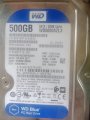
My drive doesn't spin, at all! I took the cover off carefully and the heads are all parked as the should be, I've ordered a new one the same in the hope it's the motor driver on the PCB, I'll swap them as soon as I get it!
Cheers Geoff
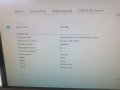
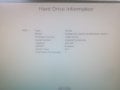
This shows the populated memory slots.
There are two 4GB memory modules installed. One in slot DIMM3 and one in slot DIMM4. This should be OK.
This configuration sets Dual Channel mode for memory channel A
My drive doesn't spin, at all! I took the cover off carefully and the heads are all parked as the should be, I've ordered a new one the same in the hope it's the motor driver on the PCB, I'll swap them as soon as I get it!
Cheers Geoff
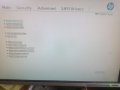
Based on the photo in post #22:
The CPU and GPU are detected and look OK.
The memory config looks OK.
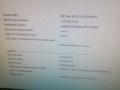
Based on the photo in post #23:
The system has detected an NVMe 256GB SSD (solid state drive). This is OK. But, it may not boot using this drive.
So....Lets stop for a moment and review the past events.
In a previous post:
1. You mentioned changing the motherboard(?)
2. You mentioned changing the Power supply.
3. You mentioned changing the on-board battery.
For the three items above, if power was not maintained to the motherboard at any time, then the BOIS settings will have been reset to defaults. This may be why it doesn't boot. There may just be a BIOS (firmware) setting that needs to be set.
Some questions:
Which disk drive was installed before problems started (when the computer worked OK)?
Did the motherboard have an SSD before problems?
Or, did the motherboard have an HDD before problems?
At this point, I recommend not changing anything until these questions get answered.
Place a photo of the motherboard as it is installed so we can see the drives and slots.
From the start.
It was working fine, next time I tried to turn it on the power light would come on but go straight off again, nothing else would happen.
Using cheapest first repair policy I got a replacement power supply, no joy.
Much grumbling later I found a replacement motherboard, changed all the bits over, cpu, SSD,memory cards, a ethernet driver, plugged in the optical drive and hard drive.
Now powers on but 3 long beeps, 2 short, this is a memory fault so I got 2 new memory cards and fitted them.
Powers up to diagnostic now, took the little password jumper off to get into the bios settings, now I'm starting to guess, no bootable drive found.
It will find the SSD and the optical drive plugged into the sata socket but not the hard drive, the hard drive won't spin up or make any noise?
Make sure both cables are plugged into the hard drive. One is a sata cable, the other is a power cable. Plug one end of the sata cable into the HDD.
The other end of the sata cable should be plugged into SATA0 connector on the motherboard. The power cable is usually a ribbon cable with multiple connectors spaced a few inches apart. On one end is a special connector that plugs into the power supply. One of the other connectors plug into the HDD (it doesn't matter which one).
Also, try this:
See if it displays the SSD and/or the HDD.
Usually, the SSD is setup as the boot drive.
But it may be that the boot drive is the HDD, and if the system doesn't detect it, it won't boot.
Hi,
Yes have verified all plugged in right, I've also been through to temporary boot menu, it lost usb, SSD and the optical drive as options, I tried the SSD but no joy.
I haven't had much time to put to it today, but have ordered a new hard drive (same model number etc) so as soon as I get that I'll connect it up, I assume it should at least show up even if it's blank?
At least that will narrow things down a bit?
I've done a bit of googling and it seems if I swap the PCBs of the new and old drive I may have to swap the bios chips too to get it to work?
Hi,
Yes have verified all plugged in right, I've also been through to temporary boot menu, it lost usb, SSD and the optical drive as options, I tried the SSD but no joy.
One thing to check is the Sata mode setting in BIOS. It should be set to "AHCI".
I haven't had much time to put to it today, but have ordered a new hard drive (same model number etc) so as soon as I get that I'll connect it up, I assume it should at least show up even if it's blank?
At least that will narrow things down a bit?
I've done a bit of googling and it seems if I swap the PCBs of the new and old drive I may have to swap the bios chips too to get it to work?
Bit more progress, new drive came today and the computer recognised it so that bits worked ok, it was a different part number than I ordered , the PCB looked a bit different but similar so I swapped them over, there was a warm smell on power up now the new drive isn't working, I guess the motor is shot on the old drive? Or they weren't compatible?

 Facebook
 Google
 GitHub
 Linkedin