Facebook
 Google
 GitHub
 Linkedin
Hey all-
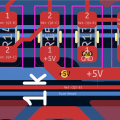
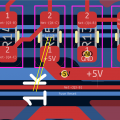
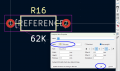
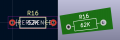
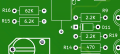
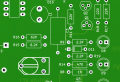
TLDR I just want to make text show up below the component footprint on the pcb to remind me which component type/value goes where when I solder the board without confusing the KiCad software.
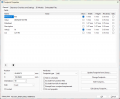
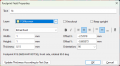
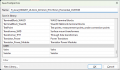
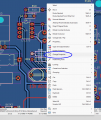
For those more patient.... This should be super easy but I am having troubles... I originally tried naming all of the f.silkscreen component labels to their values IE (R12 to R500) for 500 ohm resistor. I had several of the same component name however and freerouter would not run so I then changed them to R500, R501, R502 etc and still could not run freerouter to make the traces as they now didn't match the schematic values. I went back to the schematic and changed and updated the board from the schematic to go back to the original labels and was able to route it. The issue is that it is very tedious when trying to solder the board to look back and see that R12 is a 100K and R1 is a 10K and keep them from getting mixed up with tiny smd components. I have tried to move the $REF labels to the f.fab layer using edit and edit text and graphics properties and then update the matching f.silkscreen to one with values now that it has been routed and it still auto updates and changes the $REF labels to match even though they are on different layers. It may not matter at this point but would rather not cause any undue issues. Any suggestions?
Thank you!
TLDR I just want to make text show up below the component footprint on the pcb to remind me which component type/value goes where when I solder the board without confusing the KiCad software.
For those more patient.... This should be super easy but I am having troubles... I originally tried naming all of the f.silkscreen component labels to their values IE (R12 to R500) for 500 ohm resistor. I had several of the same component name however and freerouter would not run so I then changed them to R500, R501, R502 etc and still could not run freerouter to make the traces as they now didn't match the schematic values. I went back to the schematic and changed and updated the board from the schematic to go back to the original labels and was able to route it. The issue is that it is very tedious when trying to solder the board to look back and see that R12 is a 100K and R1 is a 10K and keep them from getting mixed up with tiny smd components. I have tried to move the $REF labels to the f.fab layer using edit and edit text and graphics properties and then update the matching f.silkscreen to one with values now that it has been routed and it still auto updates and changes the $REF labels to match even though they are on different layers. It may not matter at this point but would rather not cause any undue issues. Any suggestions?
Thank you!