Front panel online design and order

Tonyr1084

Joined Sep 24, 2015
9,744
I'm not sure what you mean. I want something like what Jon Chandler posted. However, I need mine to have holes for DB-25 and DB-9 connectors.
Catching up with this thread; it appears you are wanting a blank panel face that you can populate. The alternative to what I was asking is 'Did you want a panel with some sort of screen and controls and such. Either that or a blank panel like Jon Chandler showed in his first picture.
 

Thread Starter

popcalent

Joined Mar 17, 2018
138
Here's a secret. It will take you a few minutes to learn how to draw symbols and footprints, and a few minutes to create one when you need it. Or you can spends hours looking for one somebody else created....which may not really be what you want, but "it's close enough."
I still can't find it... It's not there for me!
db25cutout.png


Is there a way to edit existing footprints? I can try to edit the DB9 cutout which is available to me, and it's better looking aesthetically.
 

Jon Chandler

Joined Jun 12, 2008
1,597
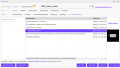
Finding particular footprints is sometimes a challenge in EasyEDA. The screenshots show exactly what I searched for, and the parts I found were on the first page of the results. Try searching by the user name.
 

Thread Starter

popcalent

Joined Mar 17, 2018
138
Finding particular footprints is sometimes a challenge in EasyEDA. The screenshots show exactly what I searched for, and the parts I found were on the first page of the results. Try searching by the user name.
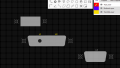
I had the great idea of putting one DB9 on top of another to try to make a DB25, but JLCPCB doesn't like the idea...
easyEDA1.png easyEDA2.png

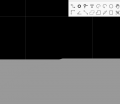
Also, I can't perfeclty align both DB9 on easyEDA....
easyEDA3.png
 
Last edited:

Jon Chandler

Joined Jun 12, 2008
1,597
I looked carefully at the DB-9 cutout, and it's not quite per drawing - probably works but not quite right.

So, I made footprints for 9, 15, 25 and 37 pin DSUBs. Once the corners are defined, it's easy to make all the sizes. I forgot to change the reference designator to J - lame.

I attached them here to make things easy, but they should show up on EasyEDA.

username: jonchandler

Files:
DSUB-9_PANEL_CUTOUT
DSUB-15_PANEL_CUTOUT
DSUB-25_PANEL_CUTOUT
DSUB-37_PANEL_CUTOUT

DSUB-xx_PANEL_CUTOUTS.png
 

Attachments

Jon Chandler

Joined Jun 12, 2008
1,597
I should explain....these footprints are drawing in the board outline layer. Shapes shown in the board outline layer within the board are routed/milled. If you look at a 3D view of the board, it shows the routed outline rather than a hole. Don't worry, there will be a hole in the finished board.

Attached is a picture of the 3D view. The bright pink is the background behind the board. You can see the holes are cut out.

dsub verify.png
 

Janis59

Joined Aug 21, 2017
1,894
Short anthology in face-panel technologies:
Method of cut-in
1) Take the printer and print out the drawing of panel on the film. Films are two types in the shops - those destroyed at printer paint-fixing owen and those able to stand 200 C. Just inspect it in the shop before buying. At early 90-ies them was designed for using in codascope by lecturers. Typicaize A4, typical price 20-50 cents per sheet.. Then puff the small amount of Positivus-20 photo resist on the alu-plate and fix the transparent ilm with isolation tape or scotch tape. Expose under UV LED diode array for few seconds or under clear-sun sky some 15 min (the time must be appreciated experimentally). Then bath with 10-20 g/l NaOH or KOH in rred light and may switch on the normal light. The etching may be done in various ways - electro-chemical, chemical etc, but in the case of aluminium one wonderful receipt is well descripted at https://link.springer.com/chapter/10.1007/978-3-319-48210-1_58 however the etcher sour composition may be largely variable, from just the ferrum chloride up to nitric accid compositions. Then fill the cavities with paint and grind the surface beatiful.
2) take the 3d CNC grinder and import Your picture into 3d-Mach. When letters are encarved, do with the paint what seems best.

Method of glue-on
1) Exist the tapes of black, white etc colors what sharply changes the color under thermal contact to specific temperature. To buy a apparatus wor printing letters on those tape costs less than 00 USD. Then cut with the scissors those words You composed and glue onto aluminium plate. The drawback is inability to form any deccorattions what are not the standard ASCII symbols

Methods of pure painting
1) Put in the laser printer the very old paper sheet, paper must be yellowish and if possible - glanced. Some old picture journals may work well, or matt paper of block-notes, but it may not contain much chalk.At printing the bold regime is best, just put the printer in lowest possible dpi. For orientating - 150 dpi is wonderful, 300 dpi is well, 600 dpi is very poor, and 1200 dpi is non applicable. When picture is on the paper, fix the paper to alu plate on the deep heat insulator, say 1 cm thick journal or book, and glade the picture with wife`s iron. However, to get the best results, iron temperature must be 180+/- 10 C but the typical iron drifts by the wind between 60 and 460 C. Thus the electronic PID control uni is highly demandes, and Omron is good but expensivish but other like REX, Inkbird, Berme and many many others are suited equally well.. Paint migration is rather slow process, squeeze and keep minutes long. Later is not bad to sprinkle all the surface with lackyer not soluting the xerox ink for better scratch resistance.
2) Apply the painted photoresist from PCB upper layer through the transpaent film benn in printer, the exposition under UV must be slight longer than Positivus-20 but result is nice. It cost not so much, for example https://www.ebay.com/itm/3340849457...yBrKp+vR3L5l6X0vAJulnEgZKw==|tkp:BFBMrLmL0Lpj
 

Thread Starter

popcalent

Joined Mar 17, 2018
138
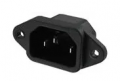
Do you guys know what this kind of AC connector is called? I also need to put it on my panel, I want to see if it's already available on easyEDA.
connector.png
 

Jon Chandler

Joined Jun 12, 2008
1,597
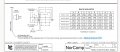
For sake of completeness, here's the drawing I used to create the the dsub patterns. This drawing made it pretty simple to draw because the center points of radiused corners was given, along with the angle of the sides.

I have to say EasyEDA supports drawing arcs beautifully. There are a couple different tools for drawing arcs – I used the one that lets me define the center point, radius and angle of the starting and ending points. Far better than my experience with Eagle, which was always an exercise in frustration.

SmartSelect_20240223_202742_Edge.jpg
 

Thread Starter

popcalent

Joined Mar 17, 2018
138
I should explain....these footprints are drawing in the board outline layer. Shapes shown in the board outline layer within the board are routed/milled. If you look at a 3D view of the board, it shows the routed outline rather than a hole. Don't worry, there will be a hole in the finished board.

Attached is a picture of the 3D view. The bright pink is the background behind the board. You can see the holes are cut out.
Honestly, I don't know how you were able to design those cutouts with such an ease. I tried to design cutouts for C13 and C14 AC connectors and it was a torture. Plus the result sucks. First of all, the lines never align with the grid. It's either a little bit above, or a little bit below. Second, I can't tell easyEDA "I want a line of this length" (or at least, I don't know how). The most I can do, is trial and error. Draw a line, use the measuring tool to measure it, and make it longer or shorter until the length is close to what I want (but don't even dream of it being the same length). I don't even want to try to draw angles or curves...

And also, the fact that cutouts don't show on the board (you mentioned the holes will be there once the board is produced) makes it impossible for me to print on paper and check with the actual component to see if it will fit.

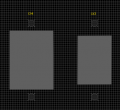
Here are my C13 and C14 cutouts:
ac.con.png
 

Jon Chandler

Joined Jun 12, 2008
1,597
I draw a random vertical or horizontal line. Select the line then enter x,y starting and end points in the right hand menu pane.

Duplicate the line and edit the points again.

Once you have the pair of duplicate lines, you can add the sides by positioning the cursor carefully at the end of one line – look for the white dot – and drawing to the parallel line.

I'll post some pictures later tonight.
 

Thread Starter

popcalent

Joined Mar 17, 2018
138
I draw a random vertical or horizontal line. Select the line then enter x,y starting and end points in the right hand menu pane.

Duplicate the line and edit the points again.

Once you have the pair of duplicate lines, you can add the sides by positioning the cursor carefully at the end of one line – look for the white dot – and drawing to the parallel line.

I'll post some pictures later tonight.
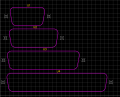
I'm trying to perfectly connect two lines. It's impossible. It's either this:
merda1.png

or this:
merda2.png
 

Jon Chandler

Joined Jun 12, 2008
1,597
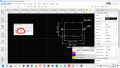
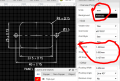
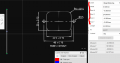
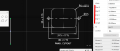
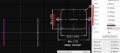
Here is how I lay out a footprint in a series of pictures. I'm not going to add many words, but I'm happy to answer any questions.

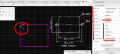
Sometimes it's handy to paste a picture of the footprint on the screen for reference.

I usually lay out footprints centered on the origin - there are less points to calculate that way.

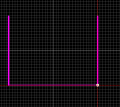
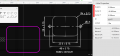
I started here by placing a vertical line on the screen, then adjusted the end points by entering values on the right side of the screen, then duplicated it and placed it to the right. Check and adjust the position by editing the values on the right.

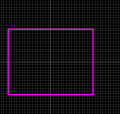
Next, connect the top of lines together by starting the cross line at exactly the top as indicated by the white dot.
Check the position in the text boxes on the right. This completes a square cutout.

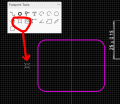
We can improve the footprint by adding curved corners. The datasheet shows the radius = 4mm. This means the center of the arc is 4mm less in each direction than the edges. The angle of each arc is 90 degrees. Get one corner properly positioned, then copy, paste and rotate for the next corner. Once the arcs are in position, shorten the ends of each straight line by 4mm.

Finally, use the hole tool to place the screw holes and adjust the diameter and position on the right.

Laying things like this out is far easier numerically than using a mouse. By the way, adjust the grid and snap to something useful as shown in one of the first pictures.


image 1.png
image 2.png
image 3.png
image 4.png
image 5.pngimage 6.png
image 7.png
image 8.png
image 9.png
image 10.png
 
Top